OpenAI's ChatGPT Voice is getting smarter and easier to use. The AI company has announced three new features that will not only give ChatGPT Voice new agentic AI based capabilities but also make them easier to access and use. OpenAI has already started rolling out these features in the latest version of the ChatGPT mobile app globally. Here's everything that we know about these features and how to access them.
ChatGPT voice gets three new features
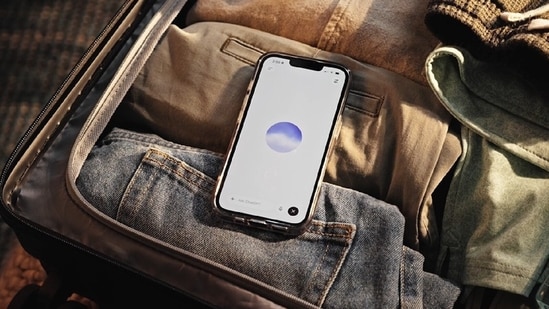
OpenAI, via an update on its X channel (formerly Twitter), revealed that ChatGPT Voice can now use plugins such as email, calendar and Slack. With this feature, ChatGPT voice users can now use plugins and connected apps available in their accounts, and follow written responses in the chat. This feature, especially the ability to connect the Google and Microsoft apps such as email, calendar and contacts arrived in the ChatGPT app last year. So, while users could access these services in ChatGPT's text-based interface, the same wasn't available for Voice users, which proved to be a major point of disconnect. However, with today's update, OpenAI is bridging that gap.
Another feature coming to ChatGPT Voice is the support for the company's latest models, which includes GPT-6 Astra, Sol, and Luna. For the unversed, OpenAI introduced its most powerful large language model, GPT-6 Astra, earlier this month. Then earlier this week, the company introduced new medium and small intelligence models, Sol and Luna, in GPT-6. With this update, ChatGPT Voice users will get access to the same models that powers the text version of the app.
Lastly, the company announced that ChatGPT Voice now works with ChatGPT Work on web and mobile. This will enable users to create docs, decks, sites, and spreadsheets or tackle complex tasks in the browser, just by talking.
How to access ChatGPT Voice in Android and iOS apps
Here's a step-by-step guide for the same:
Step 1: Select the Voice icon in the message bar.
Step 2: If prompted, allow the ChatGPT app to access your microphone.
Step 3: Now choose a preferred voice.
Step 4: After Voice opens, begin speaking to start the conversation.
How to access ChatGPT Voice on web
Here's a step-by-step guide for the same:
Step 1: Go to ChatGPT.com.
Step 2: Select the Voice icon in the prompt window.
Step 3: If prompted, allow your browser to access your microphone.
{{/usCountry}}Step 3: If prompted, allow your browser to access your microphone.
{{/usCountry}}Step 4: After Voice opens, begin speaking to start the conversation.