
 E-Paper



How to connect your AirPods to iPhone, Mac, Android, or Windows
AirPods connect easily with Apple devices, but did you know you can pair them with Android phones, Windows PCs, and other gadgets, too? Here’s how.

 Prefer HTon Google


You may be interested in

80% OFF

Boat Airdopes Joy, 35Hrs Battery, Fast Charge, IWP Tech, Low Latency, 2Mic ENx, Type-C Port, v5.3 Bluetooth Earbuds, TWS Ear Buds Wireless Earphones with mic(Jet Black)
 Boat Airdopes Joy
- 35Hrs Battery
- Fast Charge

₹699
₹3,490Check Details
6% OFF

Apple AirPods 4 Wireless Earbuds, Bluetooth Headphones, with Active Noise Cancellation, Adaptive Audio, Transparency Mode, Personalised Spatial Audio, USB-C Charging Case, Wireless Charging, H2 Chip
- Apple AirPods 4 Wireless Earbuds
- Bluetooth Headphones
- with Active Noise Cancellation
₹16,900
₹17,900Check Details
5% OFF
Apple AirPods Pro 3 Wireless Earbuds, Active Noise Cancellation, Live Translation, Heart Rate Sensing, Bluetooth Headphones, Spatial Audio, High-Fidelity Sound, USB-C Charging
- Apple AirPods Pro 3 Wireless Earbuds
- Active Noise Cancellation
- Live Translation
₹24,490
₹25,900Check Details


AirPods have become a common choice for wireless audio, not just for Apple users but also for those on Android and Windows devices. While they pair most seamlessly with Apple hardware, they also work with most Bluetooth-enabled devices. Pairing usually starts by putting the earbuds into pairing mode, after which devices detect them automatically and complete the connection. Here’s a step-by-step guide for connecting AirPods across different platforms.

How to Pair AirPods with Apple Devices
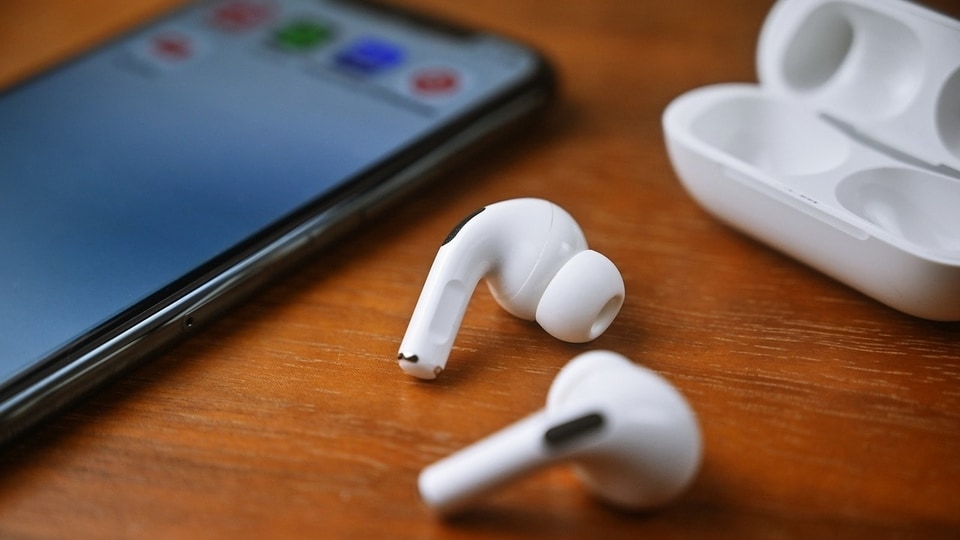
AirPods link almost instantly to Apple devices. Simply open the charging case near an unlocked iPhone or iPad, and an on-screen prompt appears. Tapping Connect links the earbuds to the device and syncs them with every Apple product logged into the same iCloud account. Switching between devices happens automatically as long as each device uses updated software and the same Apple ID.
Also read: Flipkart Republic Day Sale: iPad A16, OnePlus Pad 2, Samsung tablets now at lowest prices
If the prompt does not appear, check the Control Center for audio output options or open Settings > Bluetooth to see if the AirPods are recognised. Opening the case near the device usually triggers the pairing card again. On Mac or Apple Watch, the process is similar. AirPods already paired with an iPhone often appear automatically on the Watch. On Mac, selecting the AirPods from the Bluetooth menu completes the connection and syncs the pairing across all Apple devices on the account.
Also read: iPhone 18 Pro design and colour options leaked in a new leaked video - Details
How to Enhance Pairing on Newer iPhones
iPhones with H2 chip support, such as iPhone 15 Pro, 15 Pro Max, and the iPhone 16 series, detect compatible AirPods faster. The pairing card appears almost instantly, and switching between devices becomes smoother. If the prompt does not show, reopening the case while the phone is unlocked or confirming Bluetooth is active usually resolves the issue.
How to Enable Manual Pairing Mode
Manual pairing is essential for connecting AirPods to non-Apple devices or when automatic pairing fails. On older models, hold the setup button on the case’s back until the LED flashes white. Newer AirPods, including AirPods 4 and AirPods Pro 3, require a tap near the LED with the lid open. Closing the case ends pairing, and it must be repeated if the device does not detect the earbuds. Manual pairing does not erase previous connections but prioritises the new device when nearby devices are active.
Also read: iOS 26.3: Here’s when your iPhone will get its next update
How to Connect to Android Devices
AirPods work like standard Bluetooth earbuds on Android. Enable pairing mode, then select the AirPods from the phone’s Bluetooth menu. Once connected, they handle calls and media playback. Features such as automatic ear detection or battery status may require third-party apps. If they do not appear, refreshing the Bluetooth list or reactivating pairing mode restores discoverability.
How to Troubleshoot
Most issues arise when AirPods are not in pairing mode or are already connected elsewhere. Resetting the earbuds often resolves problems. On older models, hold the setup button until the LED turns amber, then white. On newer models without a button, close the case for 30 seconds and tap the front three times until the LED flashes amber, then white.


