The advent of AI led many to believe the new technology would make everyone’s life easier, particularly programmers'. Little did anyone anticipate that running the same set of prompts would feel nothing more than soul-draining. Beyond interacting with an AI assistant, repeating certain tasks often takes the fun out of the work we enjoy, whether it is writing an extensive article in Google Docs or adjusting common aspects of a video in Premiere Pro.
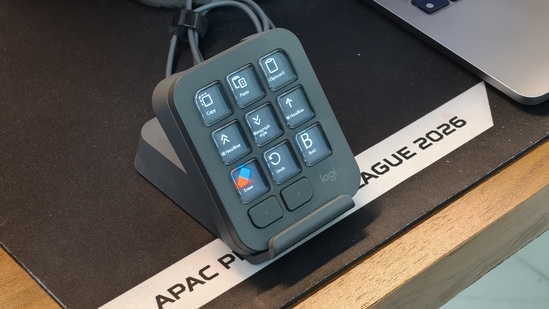
With that in mind, Logitech may have developed a product that not only saves us time by letting us avoid repetitive tasks but also recaptures the fun that made our job appealing in the first place. The product in question is the MX Keypad, and it is a macro keypad similar to the Elgato Stream Deck.
Unlike the Stream Deck, Logitech has pitched the MX Keypad as the coveted tool for programmers, configured to streamline repetitive coding and AI-assisted development with a single keypress.
Strangely, the more I tried to integrate the device into my routine, influenced by my profession as a journalist, the more the MX Keypad moved away from its programmer-centric image. Beyond that, a month of use revealed layers that weren’t so apparent, but could shape how a keyboard connoisseur sees it. Here’s everything you need to know about the MX Keypad and how it may fit in your overall use.
Design and Build Quality: A solid build with a few comfort concerns
Sleek, understated and smudge-resistant build
The MX Keypad is as visually appealing and solid as a macro keypad can be; however, it has a few shortcomings which could upset keyboard connoisseurs.
Let’s first discuss the overall aesthetic of Logitech’s macro keypad. With 9 customisable keys and two page shifters at the bottom, the MX Keypad adopts a minimalist design that blends into most setups.
I received Logitech’s macro keypad in Graphite, and at first glance, I noticed the brand used different finishes on the top panel and base. The base and the left and right sides have a matte texture, while the panel housing all the keys shines when light hits it at an angle.
The light also reveals that the area around the keys is covered in tiny bumps that, oddly, don’t feel like anything when you touch them. Given its shiny surface, the top panel interestingly doesn’t pick up any fingerprint smudges.
Keys that look better than they feel
Although the paint job and texture add interesting touches to the overall design, the keys are what make the MX Keypad appealing. Physically speaking, Logitech’s execution is a bit lacklustre.
To be clear, the way the brand has arranged them on the MX Keypad's top panel looks oddly satisfying. For starters, it places 9 customisable/macro buttons in a 3-by-3 grid with narrow gaps between them, a wide surrounding border, and rounded corners on the top row. Two keys enclose the section, which I will continue to call page-shift keys throughout the review, along with a “Logi” logo.
Layout aside, the 9 keys are visually appealing. Each houses an LCD screen, allowing users to display an icon for a command they assign in the Logi Options+ app. When not in use, they adopt a glass-like finish, giving the MX Keypad a distinctive feel.
The exact aspect in which these macro keys fall short is tactile feedback. Given Logitech's long track record of developing noteworthy keyboards, I expected the MX Keypad's keys to feel satisfying and tactile, but that wasn’t the case.
All 9 macro keys feel mushy when pressed, and honestly, I didn’t enjoy that feel throughout my use. While their mushy feedback may make you think command execution will be delayed, the macro keys trigger their respective functions instantly upon actuation.
On the flip side, the page-shift keys on the bottom feel relatively satisfying when pressed, but they are more of a supporting character in the grand scheme of things.
Comfort depends on the right angle
As with the macro keys, I found the MX Keypad’s ergonomics to be a mixed bag. With a thick chassis, its top panel, where the macro keys sit, inclines at about a 35° angle. You may assume this design makes the keys more accessible, but it actually puts pressure on your wrist when you reach for the lower keys without moving your hand. Over time, this pressure may lead to complications, such as carpal tunnel.
With that said, I think Logitech may have stumbled upon this flaw after completing production of the MX Keypad.
I say this because it comes bundled with a stand that props it up at about a 45° angle, significantly improving ergonomics and nearly resolving the issue mentioned above. This lets you rest your fingers on the edges while using your thumb to reach the keys. It also makes it easier to reach multiple macro keys at once with your fingers, as the incline brings them to a more comfortable height.
Small touches, better usability
Setting this aside, I do want to praise Logitech for focusing on minor details that enhance the overall experience. For instance, the MX Keypad features two narrow bumps on either side of its base, which prevent it from sliding when you press any macro key.
Similarly, its stand has a rubber pad on the base to increase friction with the table. The stand also features a slot with a small protrusion at the rear that holds the MX Keypad’s cable in place. Since the cable is long, Logitech added a Velcro belt to help users tie up the excess.
A reassuringly solid build
While the design is largely impressive, with some misfires, Logitech has done a praiseworthy job on the MX Keypad's build quality. Despite its plastic build, it feels solid to the touch and doesn’t creak under pressure. It's almost convinced me it will remain intact even after a hard drop.
Connectivity and Software: The right commands can change your routine
The MX Keypad works only when tethered to a PC via cable. This means a wire will stay in your sight no matter how much you try to build a wire-free desk setup. On a serious note, the cable does help the MX Keypad establish a low-latency connection with a connected PC, which it leverages to execute commands without delay. And with this, I think I got ahead of myself. Let’s walk back to when you first connect the MX Keypad to your PC.
Once hooked up, all 9 keys bring up generic options to adjust basic PC settings, like volume and brightness. Downloading the Logi Options+ app is what unlocks the MX Keypad’s full potential. It’s worth mentioning that the app is available for both Windows and macOS.
For those uninitiated, Logitech’s popular MX Master series mice also use the same app to let users customise their functionality.
Once installed, the Logi Options+ app scans for devices and displays the MX Keypad when it detects it. Clicking the device icon brings up three options in the left sidebar, but only two come in handy: Keys and Brightness. As the name suggests, the Brightness option lets you adjust the macro keys' brightness on the MX Keypad.
The Key option is where all the customisation and functionality live. Clicking the “Customise Keys” button opens a new window, with more than half of the window occupied by the MX Keypad’s preview and the plugin section taking up one-third.
While the macro keys on this preview come pre-populated with specific commands, you can start fresh by deleting them. Conversely, the Key option lets you replace preassigned commands by dragging a template from the plugin section and customising it to your preferences.
Logitech divides the plugin section into 11 categories, which are listed below:
- Media & Volume
- Open
- Navigation
- System
- Mouse
- Keyboard
- Date and Time
- Control Center
- Widgets
- Advanced
- Easy-switch
Explaining each category will expand this review beyond the Harry Potter series. So, I will focus on three of the command templates I primarily used throughout the month of testing: Open, Keyboard, and Advanced.
With the Open category, I created a few commands to open frequently accessed websites without manually typing their addresses into the search bar.
I used the Keyboard shortcut template from the Keyboard category to create commands that execute shortcuts without pressing the corresponding key combinations. For instance, my CMS requires the “Cmd +K” combo to add links to an article, which feels tedious because I have to do it repeatedly. So I created a command on the MX Keypad that saved me from the hassle with a single keypress.
But it is the templates in the Advanced category which made my life easier. For instance, adding keywords to my CMS requires me to press Enter after pasting them into a text box. Using the Multi-action template in the Advanced category, I created an MX Keypad command that performed both tasks at once with a single keypress.
That’s not it; the Advanced category templates help me save time when using ChatGPT. I often take help from OpenAI’s chatbot for a specific type of article. To avoid typing the same prompts repeatedly, I created a command with the Multi-toggle template. It lets me enter frequently used, lengthy prompts in sequence, one with each keypress on the MX Keypad.
I built the commands above around my needs and writing job. Ironically, Logitech has often marketed the MX Keypad to programmers and AI coders, a world completely opposite to my profession. That said, this should be regarded as the highest praise for this device. Logi Options+ truly lets you tailor the MX Keypad to your needs and your line of work, whether you are a video editor, live streamer, or gamer.
If you feel limited by the device's 9 commands, the app also lets you create a whole new page of commands, which you can switch to with the page-shift keys at the bottom.
Beyond using preloaded templates, the app suggests pre-made commands for specific software, including Premiere Pro, MS Word, and Slack. If the 11 template categories and software-specific options still don't feel sufficient, Logi Options+ also lets you import custom commands in JSON format, which you can create manually or with an AI assistant.
Miscellaneous: A little warmth raises questions
As my days using the MX Keypad stretched into weeks, then a month, I noticed something peculiar about Logitech’s macro keypad.
Within an hour or two of use, it sometimes felt warm to the touch, particularly on 9 macro keys. Although I know each one has an LCD screen that can generate heat, it still feels strange. I assume that had Logitech sandwiched a thermal solution between the internal hardware and the 9 macro keys, this quirk might not have emerged.
That said, I hope the brand takes this in the spirit it was meant and implements it in the next iteration of the MX Keypad.
Verdict:
The Logitech MX Keypad is a versatile macro keypad that can make repetitive tasks less tedious, regardless of your profession. Its customisable keys, extensive software support and multi-action commands make it useful for writers, programmers, video editors and streamers alike. However, mushy key feedback, awkward ergonomics without the bundled stand, wired-only connectivity and warmth during extended use leave room for improvement. Despite these shortcomings, the MX Keypad is a practical productivity tool that rewards those willing to customise it.
Choose better. Buy smarter.
NEHA by HT Tech generates recommendations using proprietary AI analysis built on years of editorial expertise.{{#product}}{{/product}}
Also Read:
iQOO Z11 5G review: Doesn't win every battle, but somehow wins you over
Disclaimer: At Hindustan Times, we help you stay up-to-date with the latest trends and products. Hindustan Times has an affiliate partnership, so we may get a part of the revenue when you make a purchase. We shall not be liable for any claim under applicable laws, including but not limited to the Consumer Protection Act, 2019, with respect to the products. The products listed in this article are in no particular order of priority.