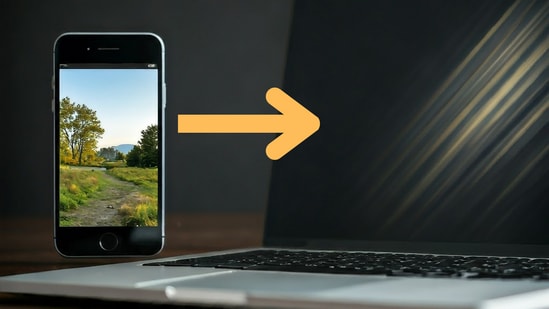
Do you have a photo on your Android phone that you wish to send to your Mac or PC wirelessly? Well, there are several ways to transfer an image, multiple images, or even other file types across devices. However, some methods are particularly straightforward. Here, we’ll guide you through a few simple options, including official Google services and third-party options.
Method 1: Upload to Google Drive
Step 1: Open the photo you wish to share in your gallery app. Tap the share icon.
Step 2: Open the Google Drive app on your Android device. Tap the “+ New" icon and select Upload. Browse and select the image you wish to upload.
Step 3: Once uploaded, tap the three-dot menu next to the file and copy the link. You can open this link on any device, be it a Mac, PC, iOS device, or iPad, to download the file wirelessly.
Note: There are several other ways to send your images across devices. One option is Microsoft OneDrive, which functions similarly to Google Drive—though the cloud service is different. You can choose between OneDrive or other services like Dropbox.
Also Read: Woman loses ₹1.94 lakh in Amazon job scam: What is it and how it works
Method 2: Use Google Photos
Google Photos provides a easy way to back up your images and also offers an easy sharing option.
Step 1: Open the Google Photos app and locate the photo you wish to share.
Step 2: Tap the share icon at the bottom and select Create Link.
Step 3: Copy the generated link and share it. This link can be opened on any device to access the photo.
Method 3: Use Snapdrop
Snapdrop is a simple, browser-based tool for transferring files.
Step 1: Visit Snapdrop.net on both your Android device and your computer (Mac or PC), or tablet.
{{/usCountry}}Step 1: Visit Snapdrop.net on both your Android device and your computer (Mac or PC), or tablet.
{{/usCountry}}Step 2: On the Snapdrop interface, tap the computer name displayed on your phone’s screen.
Step 3: Choose the file you want to transfer. A pop-up will appear on the destination computer; simply save the file. The transferred file will be stored in the Downloads folder.
Also Read: Samsung Galaxy S25 series launch date tipped, likely to make debut on…
Method 4: Use ToffeeShare
ToffeeShare is a peer-to-peer file transfer service that is end-to-end encrypted, addressing privacy concerns for many users. This ensures that nothing is stored online, providing peace of mind.
Step 1: Open ToffeeShare.com. You will be asked to select the files you wish to transfer. Grant the necessary permissions.
Step 2: After selecting your files, a link will be generated. You can now share this link with the recipient.
Step 3: When the recipient opens the link—whether on a Mac, PC, or another phone—they will be prompted to download the file. Once they click the download button, the file will be transferred in no time.