
 E-Paper



How to customise Apple Watch control centre with iPhone app buttons
Here’s how to add, remove, and use iPhone Control Centre buttons on your Apple Watch with watchOS 26 in a few simple steps.

 Prefer HTon Google


You may be interested in

Apple Watch SE 3 GPS 40mm Midnight Aluminium Case with Midnight Sport Band - M/L
 Apple Watch SE 3 GPS 40mm Midnight Aluminium Case with Midnight Sport Band - M/L

₹25,900
Check Details

Apple Watch SE 3 GPS 40mm Starlight Aluminium Case with Starlight Sport Band - M/L
- Apple Watch SE 3 GPS 40mm Starlight Aluminium Case with Starlight Sport Band - M/L
₹25,900
Check Details

Apple Watch SE 3 GPS 44mm Midnight Aluminium Case with Midnight Sport Band - M/L
- Apple Watch SE 3 GPS 44mm Midnight Aluminium Case with Midnight Sport Band - M/L
₹28,900
Check Details
Apple has changed how Apple Watch users reach key tools. With watchOS 26, the Control Centre now lets users add more buttons, change their order, and include controls linked to iPhone apps. The update also allows users to undo changes at any time and return to the default layout.
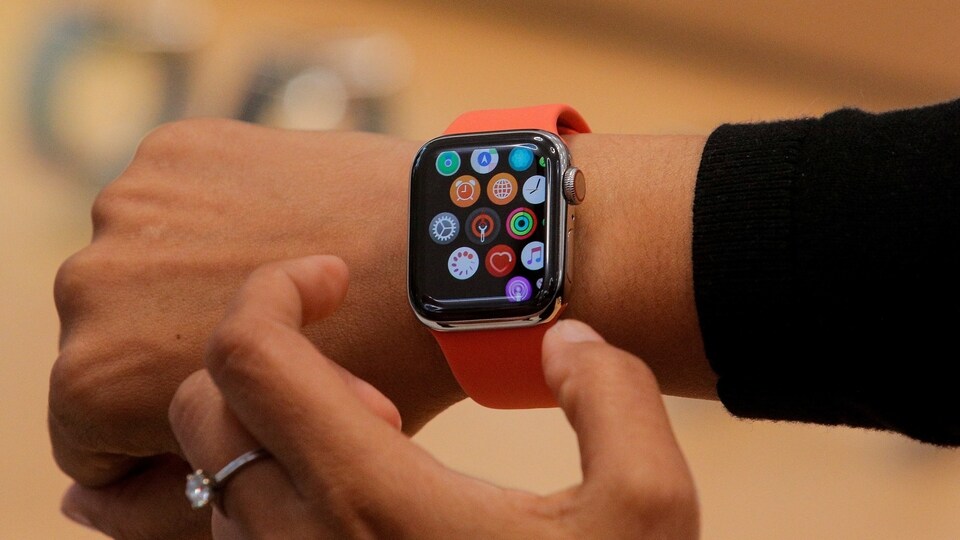

The Control Centre still offers quick access to core options such as the flashlight, Low Power Mode, and the feature that helps locate a misplaced iPhone. The difference lies in how much control users now have over what appears on the screen and how it works.
Also read: Google Translate now lets users hear live speech translations through headphones
iPhone-linked Controls Come to Apple Watch
Earlier versions of watchOS allowed only limited changes, mostly involving Apple’s own tools. With watchOS 26, Apple introduced the Control Widget API. This change lets iPhone app developers create controls that appear directly in the Apple Watch Control Centre.
These controls can work even if the app does not have a separate Apple Watch version. When a user taps one of these buttons on the watch, the action runs on the paired iPhone. This setup allows quick access to app functions without opening the phone.
Also read: Missed a call? WhatsApp now lets you reply with instant voice or video notes
Apple also lets users assign some of these controls to the Action button on Apple Watch Ultra models. Users can also place them in the Smart Stack for faster access. At present, only a small number of apps support this feature, but more may follow as developers update their apps.
How to Change Control Centre Buttons
To edit the Control Centre on Apple Watch, press the side button to open it. Scroll to the bottom and tap “Edit.” Users can then move buttons, remove them, or add new ones.
The edit screen shows a “Suggested” section at the top to reduce scrolling. A separate “From Your iPhone” section appears at the bottom. This section lists third-party controls, provided the app developer has created a compatible widget.
Also read: Realme Narzo 90 5G, Narzo 90x 5G key specs and price tipped ahead of December 16 launch
If the new layout does not work for you, resetting is simple. On the Apple Watch, open Settings, tap Control Centre, and select “Reset Control Centre layout.”
Users can also reset it from the iPhone. Open the Watch app, tap “My Watch,” go to Control Centre, and tap “Reset Control Centre.”


