
 E-Paper



iPhone Visual Intelligence: What is it and how to use
Discover how to use Visual Intelligence on your iPhone to identify objects, scan text, explore businesses, and more with just your camera.

 Prefer HTon Google


You may be interested in








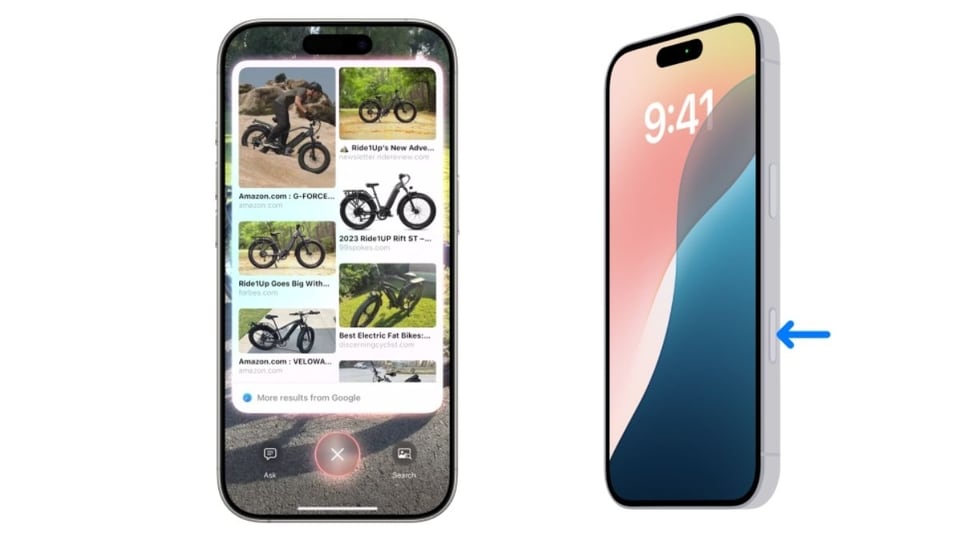
Visual Intelligence feature brings powerful AI tools to iPhones, allowing users to interact with the world around them using their phone’s camera. This feature, integrated with iOS 18 and later versions, lets users gather information about their surroundings, from identifying plants and animals to learning more about businesses and locations.

However, Visual Intelligence is only available on specific devices. Users must have iOS 18.2 or later installed on iPhone 16 models, iOS 18.3 on iPhone 16E, or iOS 18.4 on iPhone 15 Pro models. Additionally, Apple Intelligence needs to be enabled through the Settings app under Apple Intelligence & Siri.
Also read: How to easily compress data on your iPad to save storage space
How to Enable Visual Intelligence on iPhone
To start using Visual Intelligence, follow these steps based on your iPhone model:
- iPhone 16: Press and hold the Camera Control button on the right-hand side to open the camera and activate Visual Intelligence.
- iPhone 16E, iPhone 15 Pro, iPhone 15 Pro Max:
- Action Button: Go to Settings, tap on Action Button, then scroll to find Visual Intelligence.
- Lockscreen: Tap and hold the lockscreen, choose Customise> Lock Screen, and replace the current shortcut with Visual Intelligence.
- Control Centre: Swipe down from the top-right of the screen and look for the Visual Intelligence shortcut. If it’s missing, tap the "+" button to add it.
Also read: AC buying guide: 5 things to know before get a new air conditioner
How to Use Visual Intelligence
Visual Intelligence offers several ways to gather and act on information:
- Identify Animals and Plants: Point your iPhone at an animal or plant, and Visual Intelligence will automatically recognise it and provide you with the name and additional details if available.
- Interact with Businesses: Aim the camera at a business location, and Visual Intelligence will identify it. Tap on the label to view details like hours of operation, menu, delivery options, reservations, and more. You can also use it to contact the business or visit its website.
- Scan and Act on Text: With text in view, tap the capture button to see options like Summarise, Translate, or Read Aloud. Visual Intelligence can also identify phone numbers, dates, or email addresses and offer actions like calling, sending messages, or creating calendar events.
Also read: Stranger Things Season 5 release date: Popular sci-fi horror series set to release in…
- Additional Actions: Visual Intelligence provides extra functionality through two buttons:
- Ask: Open a ChatGPT prompt to ask questions related to what you see in the image. This can include object identification, fixing items, or recipe suggestions.
- Search: Perform a Google search based on the image, useful for shopping, identifying people, or gathering more information.
To exit Visual Intelligence at any time, simply swipe up from the bottom of the screen.
Explore and experiment with Visual Intelligence to unlock its full potential and enhance your everyday tasks.
Mobile finder: iPhone 16 LATEST price, specs and all details


