
 E-Paper



5 hidden iPhone features that you’re probably missing out
Here are 5 iPhone hidden features that you need to try for easy smartphone usage.

 Prefer HTon Google


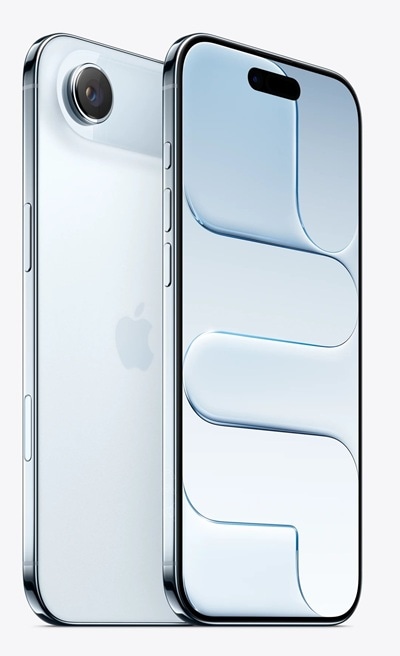

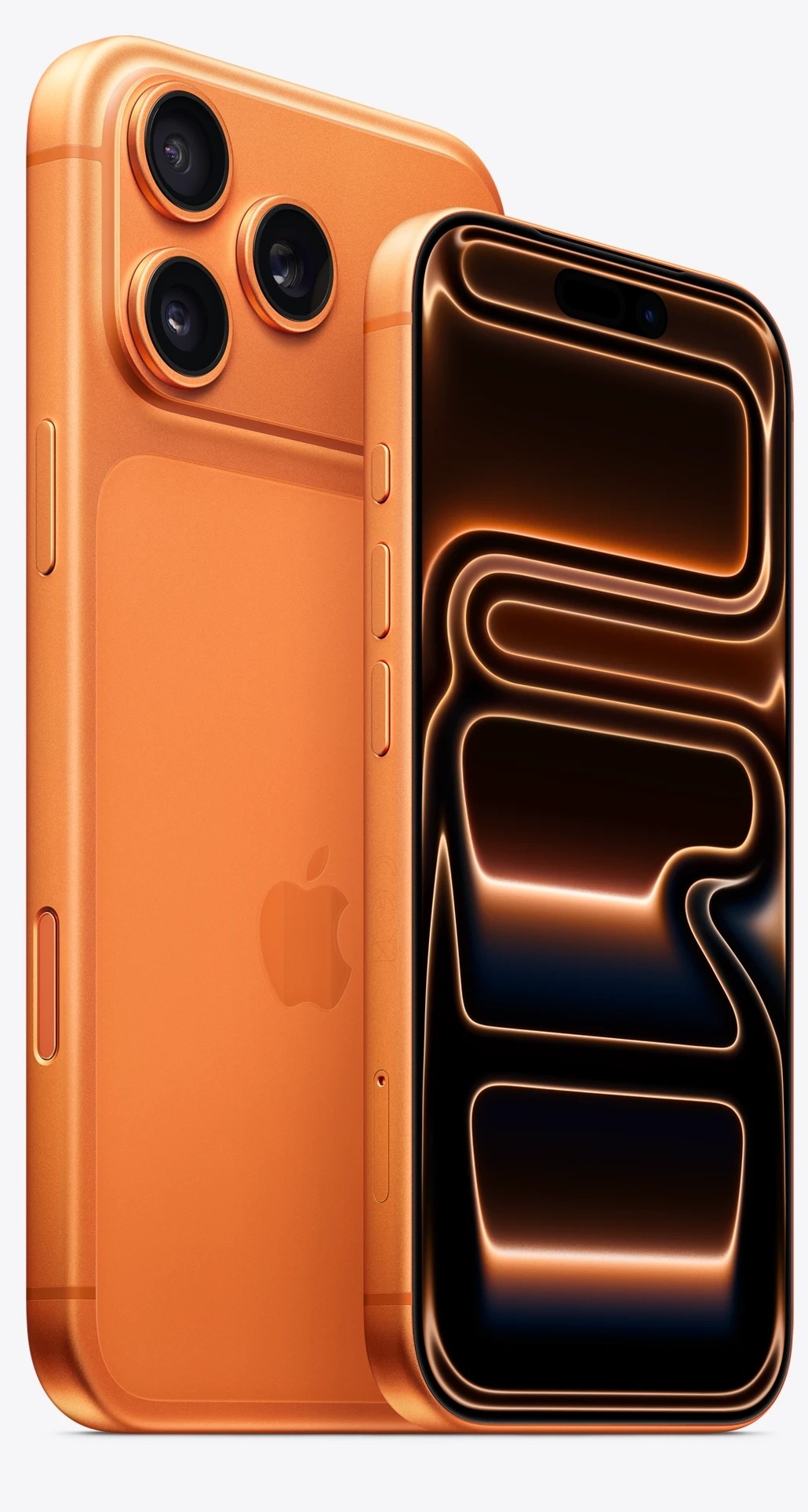
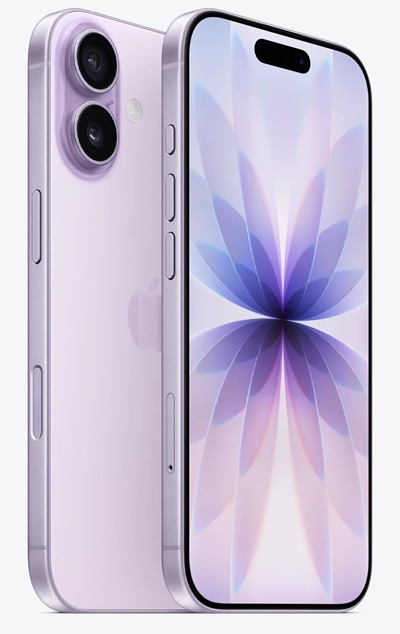


Apple iPhones are popularly known for their clean UI and secure software. One of the specialities of having an iPhone is that you’re going to get plenty of useful features that just make life easy. However, some of the crucial features are hidden deep within settings or places somewhere behind gestures, making it harder for users to get hold of them. Therefore, to bring such features to the surface, we have listed 5 hidden iPhone features that are not only useful, but also make your interaction with the device easier. Here’s everything you need to know, and how you can access these iPhone features.
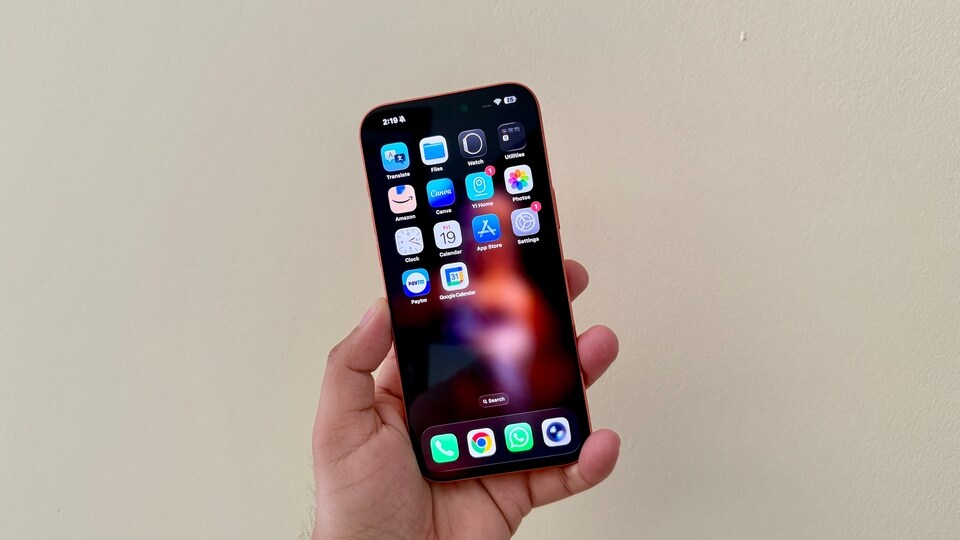

5 hidden iPhone features that deserve attention
Screenshot with back tap: iPhone users can use back tap as a hidden button to activate certain features, like screenshot. To enable this feature, simply go to your iPhone Settings>Accessibility>Touch>select Back Tap. Now select double-tap and triple-tap, and your preferred feature like screenshot, screen lock, opening Control Centre, or activating Siri.
Create text shortcuts: iPhone also enables users to save text shortcuts or abbreviations, and this works across apps. To create shortcuts, simply go to Settings>General>Keyboard>Text Replacement. Now, click on the plus icon and add a full phrase like “On my Way”, then type shortcut as “OMW”. Now, simply click on save to create a text shortcut.
Set timer from Control Centre: Instead of opening the clock app to start a timer, iPhone users can directly set via Control Centre. Simply open the Control Centre from the top-right corner and long-press on the timer icon. Simply drag the timer based on your desired time and click on the start button.
Enable alerts for specific sounds: This is a smart sound recognition feature that constantly listens in the background and sends you a notification. To enable this feature, go to Settings>Accessibility>Sound Recognition. Now simply click on Sounds and choose from the options: doorbells, baby crying or alarms.
Dim iPhone brightness beyond the default point: late-night scrolling will get easier once you enable this feature on your iPhone. Go to Settings>Accessibility> Display & Text Size> Reduce White Point. Simply turn on the toggle and adjust the slider to control the dimming.


