
 E-Paper



What Makes a Printer Suitable for Scrapbooking? Photo Sizes, Paper Support and Borderless Printing Explained
A flexible inkjet can suit scrapbookers who also print schoolwork and household documents. If photo printing is your main priority

 Prefer HTon Google


A good scrapbooking printer should print photos in different sizes, work with photo paper and let you choose between borders and edge-to-edge prints. An inkjet printer with flexible paper settings can do all of this well. If you want more control over photo quality, a dedicated photo printer may suit you better.
Scrapbooking asks a lot from a printer. Your photos need to fit the page, leave space for decoration and still look sharp after you resize them. So before you buy, it helps to know which features will actually make your work easier.
1. Check Whether the Printer Supports Different Photo Sizes
Scrapbook pages rarely have room for full-sized photos. You will often need small prints for one page and bigger ones for the next.
So when you ask which printer is best for scrapbook photo printing, start with paper size, not price.
Some printers accept a few standard photo sizes but give you little freedom with custom sizes. Others let you set your sizes through their software. Before you buy, check these points:
- Supported sizes: What are the smallest and largest photo papers it takes?
- Custom sizes: Can you enter your own paper dimensions?
- Scaling: Can you shrink or enlarge a photo before printing?
- Orientation: Does it print in both portrait and landscape?
2. Don't Overlook The Type Of Paper You Can Use
The paper you choose changes how your photo looks. Its finish, thickness and texture all show once the print is on the page.
Plain printing paper and photo paper are made for different jobs, so check what your printer can handle.
Glossy Paper
Glossy paper is shiny and makes colours look bright. On the downside, it shows reflections and fingerprints more easily.
Matte Paper
Matte paper has very little shine. Many people like its softer look, and it is easier to view under different lights.
Paper Thickness
Thick paper feels nicer in the hand, but your printer must be able to feed it. Look at the supported paper weight in the specifications. Don't assume every photopaper will work.
Also think about how you will stick the photos into your scrapbook. The finish should suit both the photo and the page design.
3. Understand What Borderless Printing Actually Does
Borderless printing takes the image right to the edge of the paper with no white margin. This helps when a photo has to fit snugly into a layout.
There are a few things to know about it:
- Size limits: Some printers offer borderless printing only on certain paper sizes.
- Cropping: The printer may enlarge the photo slightly, so a little of the edge gets cut off.
- Paper type: Some papers do not support borderless printing.
- Settings: You may have to switch it on yourself each time.
4. Look At Photo Quality Beyond The DPI Figure
Printer boxes often highlight resolution. DPI does matter, but it doesn't tell you everything about photo quality.
A good print needs a few things to work together. The original photo must have enough detail for the size you want. The printer must handle colours well. And the paper setting must match the paper you load.
Look for these features:
- Ink setup: Different ink systems produce colours differently.
- Photo modes: Check for special quality settings for photos.
- Colour controls: Look for options to adjust brightness, contrast and colour.
- Paper support: Make sure it works with the photo paper you plan to buy.
5. Decide Between An All-In-One And a Dedicated Photo Printer
Not every scrapbooker needs a printer built only for photos. It depends on how much of your printing is for photos and what other tasks you need the printer to do.
| Printer Type | What It Offers | What To Keep In Mind |
| All-in-one inkjet | Photo printing, scanning and copying | Photo features vary by model |
| Ink tank printer | Refillable ink for regular printing | Price and photo features vary |
| Compact photo printer | Small-format photo prints | Fewer paper choices |
| Dedicated photo printer | Features built for photos | Not ideal for daily documents |
6. Consider Whether The Printer Will Serve The Whole Family
A printer you buy for scrapbooking will probably end up doing household jobs too. This is especially true in homes with school-going children.
School projects, activity sheets and study material often need colour printing. If several people are going to share the printer, an all-in-one printer makes good sense.
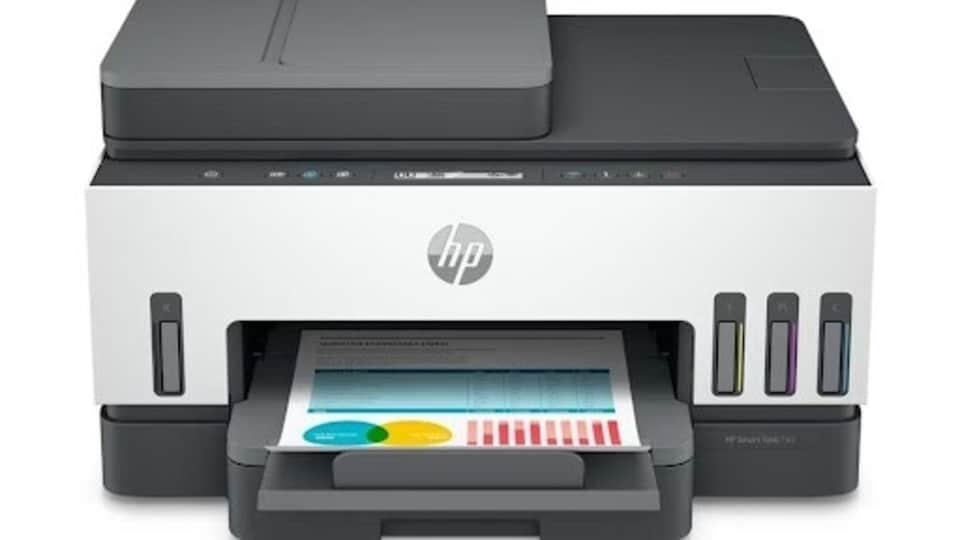
The HP Smart Tank 580 is designed for home and learning needs. It prints, scans and copies, and it supports wireless printing. HP states a yield of up to 8,000 black or 6,000 colour pages from the ink supplied in the box. It also comes with a 1+1 year warranty.
Remember that this model is a general home printer. If you mainly want specialist photo prints, compare them with dedicated photo printers before you decide.
7. Think About Larger Prints And Wall Decorations
Some printers that handle small scrapbook photos can also print larger ones. This depends on the paper sizes they support.
If you are looking for the best printer for printable wall art, paper size becomes even more important. Check the largest print size, the paper finishes available and whether borderless printing works at that size.
Your photo also needs enough resolution to be enlarged. A bigger print cannot bring back detail that was never in the photo.
Before you buy, make sure the printer takes the paper you want, so you don't have to shrink your planned artwork.
8. Check The Practical Side Of Printing At Home
Good photo features are not much use if the printer is difficult to use every day. So think about how you will use and look after it.
Mobile Printing
If your photos are on your phone, wireless printing saves you from moving files to a computer first.
Ink Replacement
Find out how you refill or replace the ink and whether supplies are easy to get.
Paper Handling
See how the paper loads, whether each paper type needs its own setting and how much space the printer takes up.
Running Costs
Photos use much more ink than text pages. The page yield a manufacturer lists is not the number of photos you will get.
You can explore HP's home printers to compare features before you buy.
Conclusion
The right scrapbook printer depends on the photos you want to print and how you plan to arrange them. Start by checking the supported paper sizes, photo paper options and borderless printing. After that, look at the ink system, the printing software and the running costs.
If you scrapbook and also print everyday family documents, a general inkjet printer will likely serve you well. If photos are your main focus, a dedicated photo printer may be the better choice. Pick a printer that works with your favourite paper, gives you control over photo sizes and fits easily into your routine.
Note to readers: This article is part of HT's paid consumer connect initiative and is independently created by the brand. HT assumes no editorial responsibility for the content, including its accuracy, completeness, or any errors or omissions. Readers are advised to verify all information independently


