
 E-Paper



ChatGPT now has a library to save your Ghibli and other AI-generated images
You no longer have to scroll through your previous chats to find AI images made using ChatGPT, they’re all now stored in the new Library tab.

 Prefer HTon Google


OpenAI, the creator of ChatGPT, took the internet by storm earlier this month by introducing a new image generator to the ChatGPT chatbot. People used it to create a wide variety of images, including the super-popular Ghibli Trend. They then followed it up by creating action figures—and now, they're doing even more, such as transforming themselves into cats, dogs, and all sorts of fun avatars. However, managing these AI-generated images had become a bit chaotic.
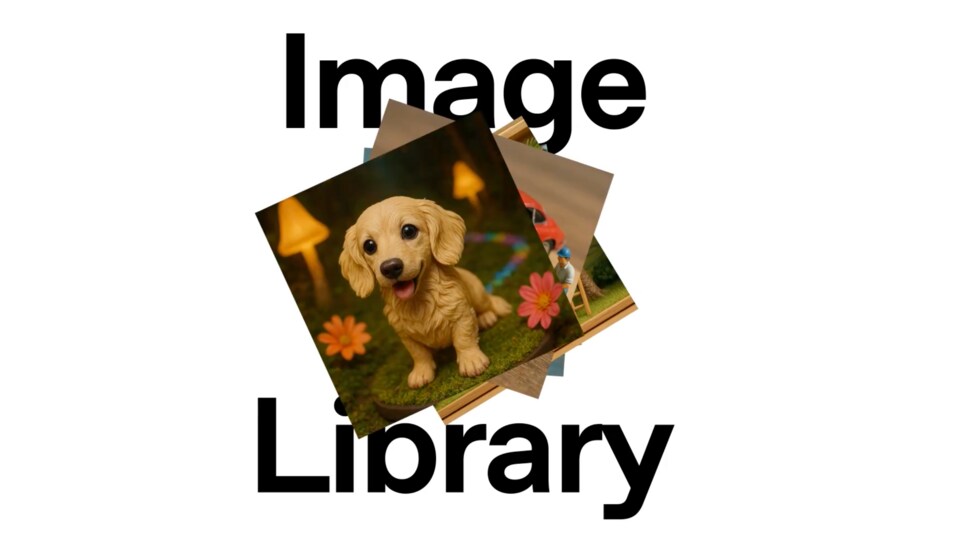

To address this, OpenAI has now announced its latest launch: a new convenience feature called Library, designed to bring all your AI-generated images into one place.
Also Read: Google borrows this feature from iPhone to boost security in Android phones
So, what does the Library actually do in ChatGPT?
Essentially, any image you generate using ChatGPT will now be stored in one accessible location.
First off, this is a free update for all ChatGPT users, whether you're on the Free, Plus, or Pro plan. It’s available on both the ChatGPT mobile app and the web version.
“All of your image creations, all in one place. Introducing the new library for your ChatGPT image creations—rolling out now to all Free, Plus, and Pro users on mobile and http://chatgpt.com,” OpenAI posted on X.
How to access the new Library tab in ChatGPT?
To access it on the web: Simply open ChatGPT and look for the sidebar. In the sidebar, you’ll see a new section called Library under “Explore GPTs” and “ChatGPT”. Tap on “Library”, and you’ll be able to view all the images you’ve generated so far using ChatGPT. You’ll also see an option to create an image directly from the My Library section.
To access it on the ChatGPT mobile app: Download the ChatGPT app from the App Store or Google Play, then tap the icon in the top-left corner to expand the sidebar. Once it opens, tap on “Library” under “Explore GPTs”. There, you'll find all the images you've generated so far, and any you create in the future.
Also Read: Gboard for Android phones gets new voice typing mode


