
 E-Paper



How to use Microsoft’s new Copilot 3D tool to turn any flat image into a 3D model
Are you curious how a single image can transform into a 3D model in seconds? Microsoft’s Copilot 3D tool can make it possible in minutes. Here’s how.

 Prefer HTon Google


Turning a flat image into a lifelike 3D model once required advanced design skills and expensive software. Microsoft has now made this process far simpler by introducing Copilot 3D inside Copilot Labs. The tool converts a regular picture into a ready-to-use 3D file within seconds, opening the door for hobbyists, creators, and developers to explore new projects without learning complex modelling programs.
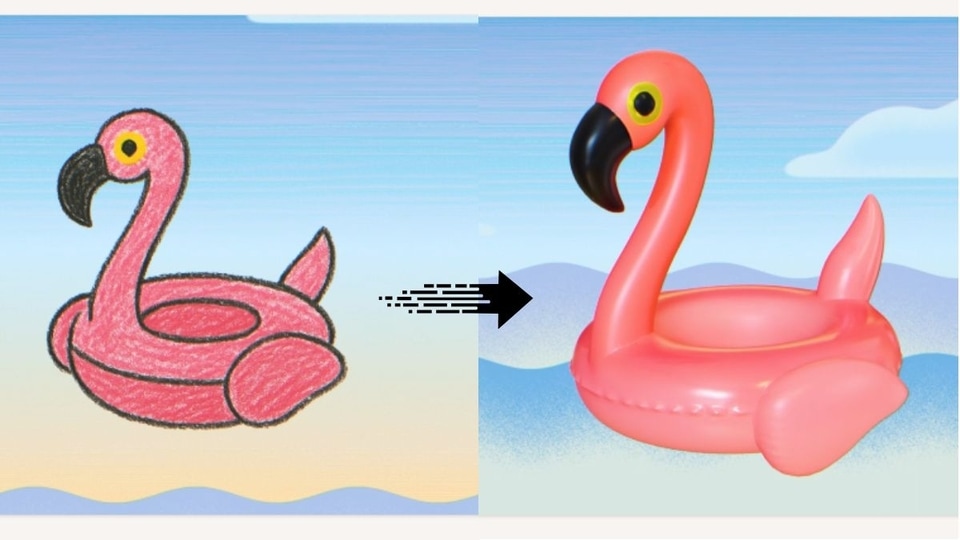

Here’s a step-by-step guide to getting started with Copilot 3D.
Step 1: Sign in to Copilot
Visit Copilot.com and sign in with either your Microsoft or Google account. Access to the tool is free, but you must log in to use it.
Also read: How to quietly limit someone on Instagram without blocking, unfollowing, or causing drama
Step 2: Open Copilot 3D in Labs
Once signed in, open the sidebar menu and click on Labs. From there, select Copilot 3D and tap the Try now button to launch the tool.
Step 3: Upload an Image
You can upload PNG or JPG files up to 10MB. For the clearest results, choose an image with a distinct subject against a simple background. Everyday items like gadgets, chairs, or decorative pieces tend to generate the best models. Busy or complex images may lead to less accurate results.
Also read: How to use ChatGPT to colourise old black-and-white images: Step-by-step guide
Step 4: Generate Your 3D Model
After uploading, Copilot 3D automatically processes the file and creates a model in seconds. The output comes in GLB format, which is widely supported across 3D viewers, animation tools, AR/VR platforms, and game engines.
Step 5: Save or Download Creations
All generated models are stored under the My Creations tab for 28 days. You can download them directly or use them in your own projects, whether it’s for 3D printing, virtual environments, or digital design.
Also read: How to easily compress data on your iPad to save storage space
Extra Tip: Explore the Sample Library
If you’re unsure where to start, Microsoft provides a small library of ready-made scenes that you can explore or adapt for your own use.
Important Notes
Copilot 3D currently supports only image-to-model conversion - text prompts are not available. Avoid uploading copyrighted material or private photos without consent. Illegal content is blocked automatically, and the tool works best on desktop browsers.


