
 E-Paper



Your Samsung phone has a hidden Wi-Fi fix: Here’s how to unlock it
Samsung Galaxy users may not know their phones hide a secret Wi-Fi menu called Connectivity Labs. Find out how to access it and solve slow internet issues.

 Prefer HTon Google


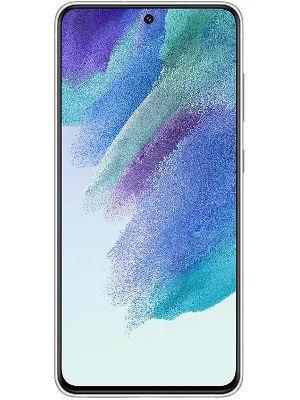








Samsung Galaxy users may be sitting on a hidden tool that can help improve their internet performance, and most don’t even know it exists. A feature called “Connectivity Labs”, tucked deep inside the Wi-Fi settings, gives users access to a set of network tools designed to test, analyse, and improve wireless connections.
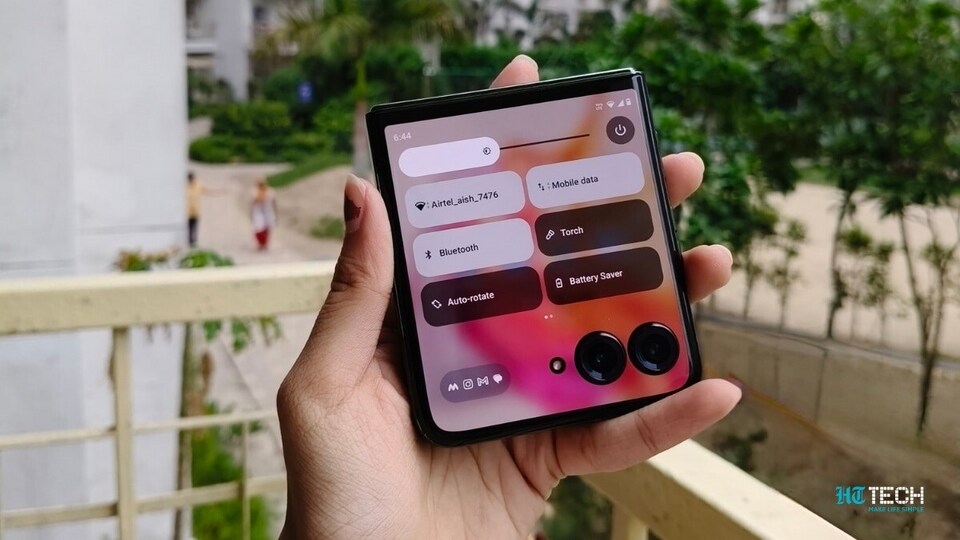

How to Access the Hidden Connectivity Labs
The feature isn’t visible in regular settings. To unlock it, users need a Samsung phone running OneUI 6 or newer, typically models released after the Samsung Galaxy S20 series. You can start by opening the Settings app, then go to Connections - Wi-Fi. Tap the three dots in the top-right corner, choose Intelligent Wi-Fi, and scroll down to the bottom of the page.
Also read: Apple may ‘depend’ on Google Gemini for smarter AI-powered Siri
There, tap seven times on the Intelligent Wi-Fi version number (currently listed as Intelligent Wi-Fi 7.0.0). A pop-up message will then appear, counting down the remaining taps. Once done, a new option titled Connectivity Labs will appear at the bottom of the Intelligent Wi-Fi screen.
What Connectivity Labs Offers
The menu opens to show you graphs that monitor how your phone interacts with different Wi-Fi bands and networks, as well as an overview of your daily Wi-Fi usage. But the real value lies in the tools found further down the page.
Also read: Apple is expected to launch these products in 2026: iPhone 17e, iPhone 18 series and more
Among the most practical features are:
- Home Wi-Fi Inspection Tool: It lets users walk around their home while tracking signal strength, helping them identify strong and weak spots. This makes it easier to decide where to place routers, smart devices, or cameras for the best connection.
- AI-Powered Mobile Data Switching: The feature helps the phone quickly move to mobile data when Wi-Fi becomes weak or unstable, reducing lag or disconnections - ideal for users with unlimited data plans.
- Wi-Fi Developer Options: This section displays a list of nearby Wi-Fi networks and their respective signal strengths. This information is useful for selecting the fastest and most stable network in crowded areas, such as airports and offices.
Also read: iPhone 17 repair at home: The cost of display glass is…
Why It Matters
“Connectivity Labs” adds another layer of control for Samsung users who want to fine-tune their network experience. While not every setting will be relevant for all users, these hidden options offer practical ways to test and improve connectivity without relying on third-party apps. If you're facing frequent Wi-Fi issues, this menu could offer the simplest fix.


