
 E-Paper



iPhone users are missing these 5 hidden iOS 26 features worth trying
iOS 26 brings more than headline updates. These five hidden tools will quietly change how you manage calls, alerts and everyday tasks on your iPhone.

 Prefer HTon Google






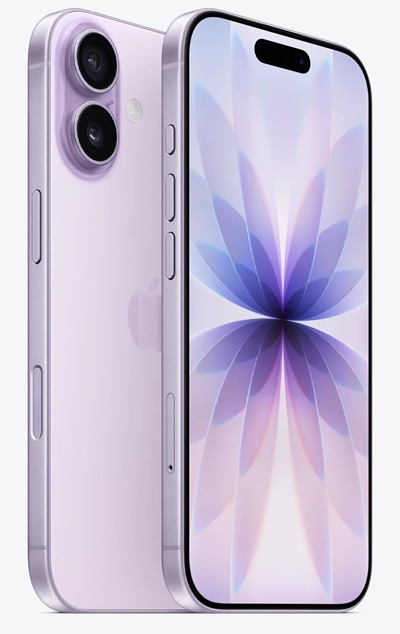



Many iPhone users updated to iOS 26 for its headline changes, but several features that sit quietly in the background may add more value to your day-to-day tasks. These tools are not as visible as Live Translation or Hold Assist, yet they can change how you manage alerts, calls and files on your device. Here are five lesser-known features you can start using today.

Name Recognition
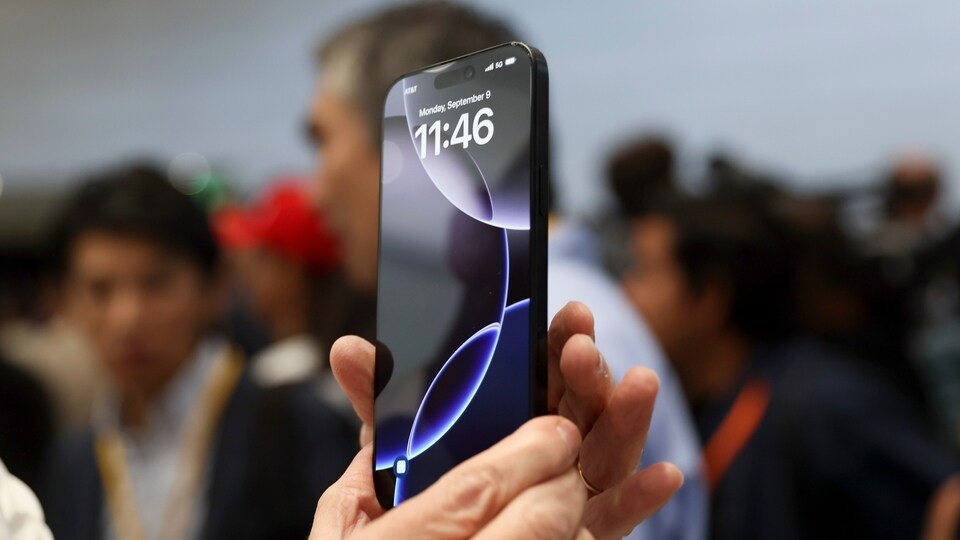
iOS 26 introduces a feature that listens for your name and sends an alert when someone calls out to you. It works well for users who often miss verbal cues or prefer extra awareness.
You can set it up in Settings > Accessibility > Sound & Name Recognition > Name Recognition. Enter your name, check the auto-generated pronunciation or record your own, and save it. Your device will display an orange indicator while it listens. You can add or remove names anytime or disable the feature when it is not needed.
Also read: I ditched my laptop for the OnePlus Pad 3: Here’s why I might not go back
Customised File Folders
The Files app now supports colour-coded folders. This makes it easier to locate documents without scanning through labels.
Press and hold a folder, open Customise Folder & Tags, pick a colour, and add an icon or emoji. The changes sync across iPhone, iPad, and Mac. You can switch back to the default look by choosing the blue tag and removing the icon.
Spam Filtering
iOS 26 expands its built-in protection against spam. The update can filter calls and messages from unknown or suspicious numbers and move them into a separate list.
To set it up, go to Settings > Apps. Under Messages, enable Filter Spam and Screen Unknown Senders. Under Phone, enable Spam and Screen Unknown Callers. Only calls and messages from known contacts will appear in your main inbox and call log, while all unknown activity stays muted in the filtered view.
Also read: Android phones could get an iPhone-like NameDrop feature soon: Report
Call Back Reminder
A new call-back reminder helps you return missed calls without manually creating a reminder.
In the Phone app, swipe left on a call entry and tap the clock icon. Choose one of the preset times or set your own. The reminder appears above the Recents list and also shows up in the Reminders app. When you finish the call, mark it as completed.
Also read: New DPDP rules come into effect: Know how your personal data will be handled now
AirPods as a Camera Remote
iOS 26 lets supported AirPods models act as a remote shutter. After pairing, open Settings > AirPods > Camera Remote and assign a press action. With the AirPods in your ears, open the Camera app and press the stem to snap a photo or start a recording. You can turn the feature off anytime.


