
 E-Paper



Microsoft unveils Copilot mode in Edge: What is it and how to enable it
Microsoft Edge’s new Copilot Mode adds AI-powered browsing with multitasking help, available now for Windows and Mac users.

 Prefer HTon Google


Microsoft has introduced Copilot Mode in the Edge browser, aiming to transform the browser into an AI-powered assistant and collaborator. This experimental feature reimagines web browsing by utilising an AI agent to assist users in managing tasks, navigating through information, and boosting productivity.
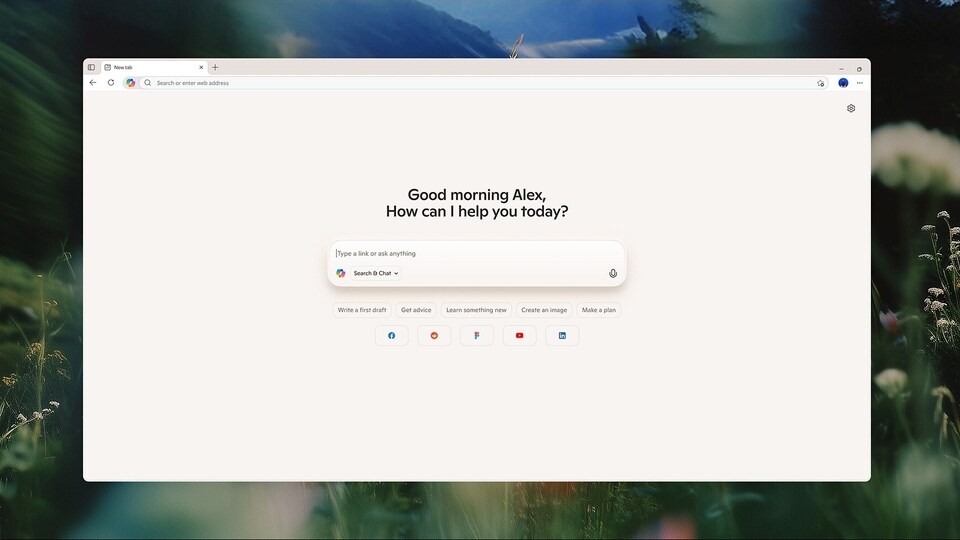

What is Copilot mode in Edge
The Copilot mode on Edge offers a clean new tab page with a single input field where users can ask questions, chat, or open a website using natural language, including via voice commands. It can see all your open tabs (if you allow it to) and can give you a detailed comparison. It can speed up decision-making while reducing the need to go back and forth between different tabs. Copilot can even take action for you, like opening tabs, finding information from different websites, summarising content, translating, and managing bookings directly from your browser.
Copilot is always accessible in a dynamic side panel, which helps in small tasks like summarising content and converting measurements without losing your place on the webpage. Users will soon be able to use Copilot to organise browsing into topic-based “journeys”, offering suggestions on what to do next to help resume an interrupted session.
Copilot mode is completely an opt-in feature, with all the user data handled according to Microsoft’s privacy standards, and it shows clear cues about what Copilot can access. The Copilot mode can easily be disabled anytime from the settings, and it will only access browsing data with the user’s permission.
Copilot mode availability
Copilot mode in Edge is available for free for a limited time to all Edge users on Windows and Mac. Some of the features may be limited for free use, and Microsoft may expand or change the availability in the future.
How to enable Copilot mode on Edge
To enable this feature, users need to navigate to the Edge Copilot feature page and then follow the prompts to turn on the Copilot mode and explore its capabilities. After opting in to Copilot mode, it can easily be enabled and disabled from the browser settings at any time.


