
 E-Paper



How to turn a retired Windows laptop into a Chromebook for free
Here’s how to turn your old Windows 10 laptop into a Chromebook using ChromeOS Flex with this simple installation guide.

 Prefer HTon Google


You may be interested in

17% OFF

HP 15s, 12th Gen Intel Core i5 16GB RAM/512GB SSD 15.6-inch(39.6 cm) Micro-Edge Anti-Glare FHD Laptop/Win 11/Intel Iris Xe Graphics/Dual Speakers/Alexa/Backlit KB/MSO/Fast Charge, 15s- fq5112TU
 HP 15s
- 12th Gen Intel Core i5 16GB RAM/512GB SSD 15.6-inch(39.6 cm) Micro-Edge Anti-Glare FHD Laptop/Win 11/Intel Iris Xe Graphics/Dual Speakers/Alexa/Backlit KB/MSO/Fast Charge
- 15s- fq5112TU

₹49,500
₹59,387Check Details
18% OFF
![HP Pro Book14[New Launch], 13th Gen Intel Core i5-1335U Turbo Boost, 24GB DDR4, 512GB SSD, Win11 Pro, MSO21, 3 Year Warranty, IPS 14" FHD HDR Laptop, Finger Print, Backlit KB, Metal Body, Anti Virus](https://m.media-amazon.com/images/I/41OwKBka2LL._SL160_.jpg)
HP Pro Book14[New Launch], 13th Gen Intel Core i5-1335U Turbo Boost, 24GB DDR4, 512GB SSD, Win11 Pro, MSO21, 3 Year Warranty, IPS 14" FHD HDR Laptop, Finger Print, Backlit KB, Metal Body, Anti Virus
- HP Pro Book14[New Launch]
- 13th Gen Intel Core i5-1335U Turbo Boost
- 24GB DDR4
₹71,990
₹87,564Check Details
22% OFF

HP Victus, AMD Ryzen 9-8945HS, 8GB RTX 4060, 16GB RAM (Upgradeable) 1TB SSD, 144Hz, 300nits, IPS, FHD, 15.6"/39.6cm, Win11, M365* Office 24, Blue, 2.29Kg, Backlit, fb3025AX, AI Gaming Laptop
- HP Victus
- AMD Ryzen 9-8945HS
- 8GB RTX 4060
₹98,990
₹1,26,579Check Details
51% OFF
HP Professional 14 (2025), Intel Core i3 13th Gen 1315U - (16 GB/512 GB SSD/Intel UHD Graphics/Windows 11 Home) Thin and Light Business Laptop/14.0" HD Display/Turbo Silver/1.4 Kg/MSO 2021
- HP Professional 14 (2025)
- Intel Core i3 13th Gen 1315U - (16 GB/512 GB SSD/Intel UHD Graphics/Windows 11 Home) Thin and Light Business Laptop/14.0" HD Display/Turbo Silver/1.4 Kg/MSO 2021
₹36,990
₹74,990Check Details
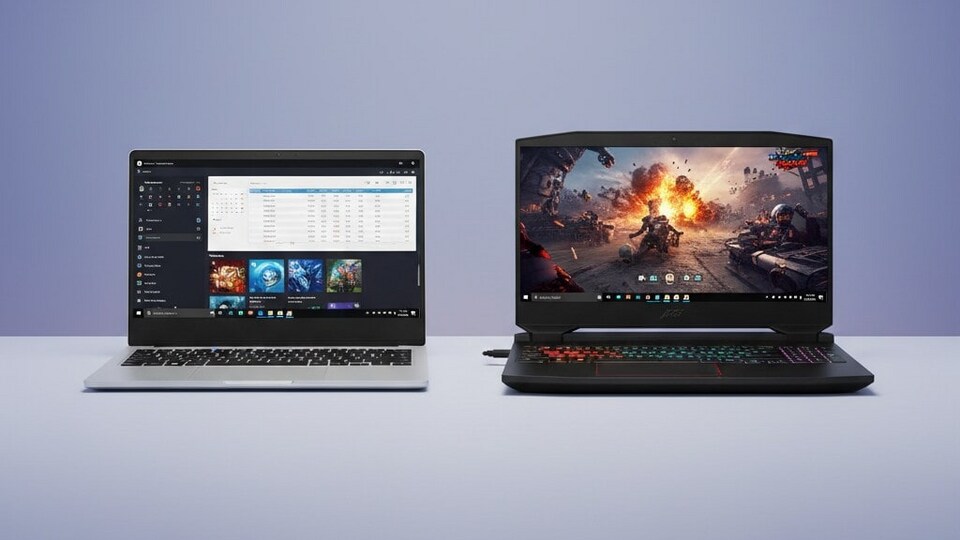
When Windows 10 reaches its end of support, many laptops will lose regular updates and security protection. But that doesn’t mean they have to be discarded. Instead of storing your old PC away, you can turn it into a Chromebook by installing ChromeOS Flex, a version of Google’s Chrome operating system built for older computers. This process gives your laptop a fresh, browser-based life, ideal for everyday tasks like browsing, writing, or streaming.

What You Need
Before you start, gather these essentials:
- A Windows 10 laptop
- A USB drive or SD card with at least 8GB of storage
- A reliable internet connection
- A Google account
Also read: Redmi K90 Pro Max with Bose-tuned audio launching on October 23: Check expected features and specs
Step 1: Prepare Your Laptop
If your system isn’t eligible for a Windows 11 upgrade or you prefer switching, prepare it for ChromeOS Flex. You can either test ChromeOS Flex directly from a USB drive, allowing you to return to Windows anytime, or install it permanently. Google lists compatible models on its official site, but even unsupported systems often work fine. Back up all files before you begin.
Step 2: Install Chromebook Recovery Utility
Open Google Chrome on your Windows laptop and install the Chromebook Recovery Utility extension. Once added, click the puzzle icon near the address bar and launch the tool. Select Get started, then when prompted, choose Select a model from a list. Under “Manufacturer,” pick Google ChromeOS Flex, and under “Product,” select ChromeOS Flex.
Also read: Nano Banana AI could soon transform your photos into memes in Google Messages
Step 3: Create the Bootable Drive
Insert your USB drive and select it from the list in the Recovery Utility. Choose the Stable ChromeOS Flex build, then click Create Now. The utility will prepare the installation drive, this might take several minutes. When complete, remove the USB drive safely.
Step 4: Boot ChromeOS Flex
Insert the ChromeOS Flex USB drive into your Windows laptop and restart it. If it doesn’t boot automatically, enter the BIOS setup (usually by pressing keys like F2, F12, or DEL during startup). Change the boot order to prioritize the USB drive, save the settings, and restart.
Step 5: Try ChromeOS Flex
Once ChromeOS Flex loads, you’ll get two choices: Try it first or Install it. It’s better to test it initially. Connect to Wi-Fi, sign in with your Google account, and explore the system. Check whether the touchpad, sound, and Wi-Fi work smoothly. Some small lags during this stage might disappear after full installation.
Also read: If your WhatsApp messages go unanswered, this new rule might surprise you
Step 6: Backup Before Installing
If the test works fine, you can move forward with the installation. Keep in mind that this step will erase your Windows data completely. If there’s anything important left, restart your system without the USB drive to return to Windows and back up your data.
Step 7: Install ChromeOS Flex
Reinsert the USB drive, restart your laptop, and select Install ChromeOS Flex. Follow the on-screen instructions, reconnect to Wi-Fi, and sign in again with your Google account. After installation, your laptop will reboot as a Chromebook powered by ChromeOS.
Step 8: Erase the USB Drive
Once installation is done, you can reuse your USB drive. Open the Chromebook Recovery Utility again, click the settings icon, and choose Erase recovery media. Select your USB drive and confirm to format it.
Also read: Earn while you browse: Perplexity rolls out $2 reward and a free Pro trial for Comet users
How ChromeOS Differs from Windows
ChromeOS is built mainly around the Chrome browser. It focuses on web-based activities rather than local software installations. It doesn’t support heavy applications or games, but it runs efficiently for online work, document editing, and media streaming.
By installing ChromeOS Flex, your old Windows 10 laptop gains a second life, simple, lightweight, and ready for everyday use.


