
 E-Paper



How to turn off the camera swipe gesture on the iPhone lock screen
Tired of opening the camera by mistake on your iPhone's lock screen? Turn off this hidden setting to stop this action in no time.

 Prefer HTon Google


You may be interested in
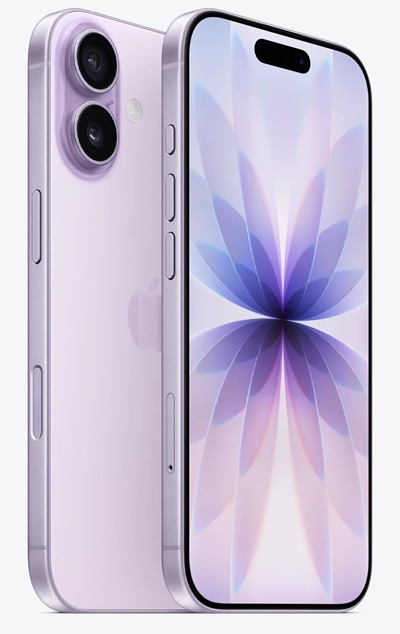


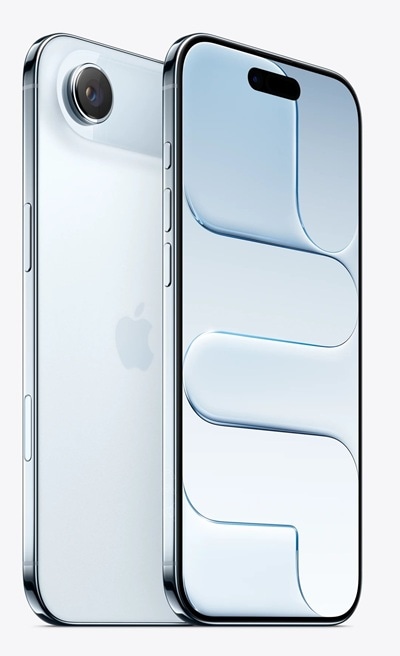

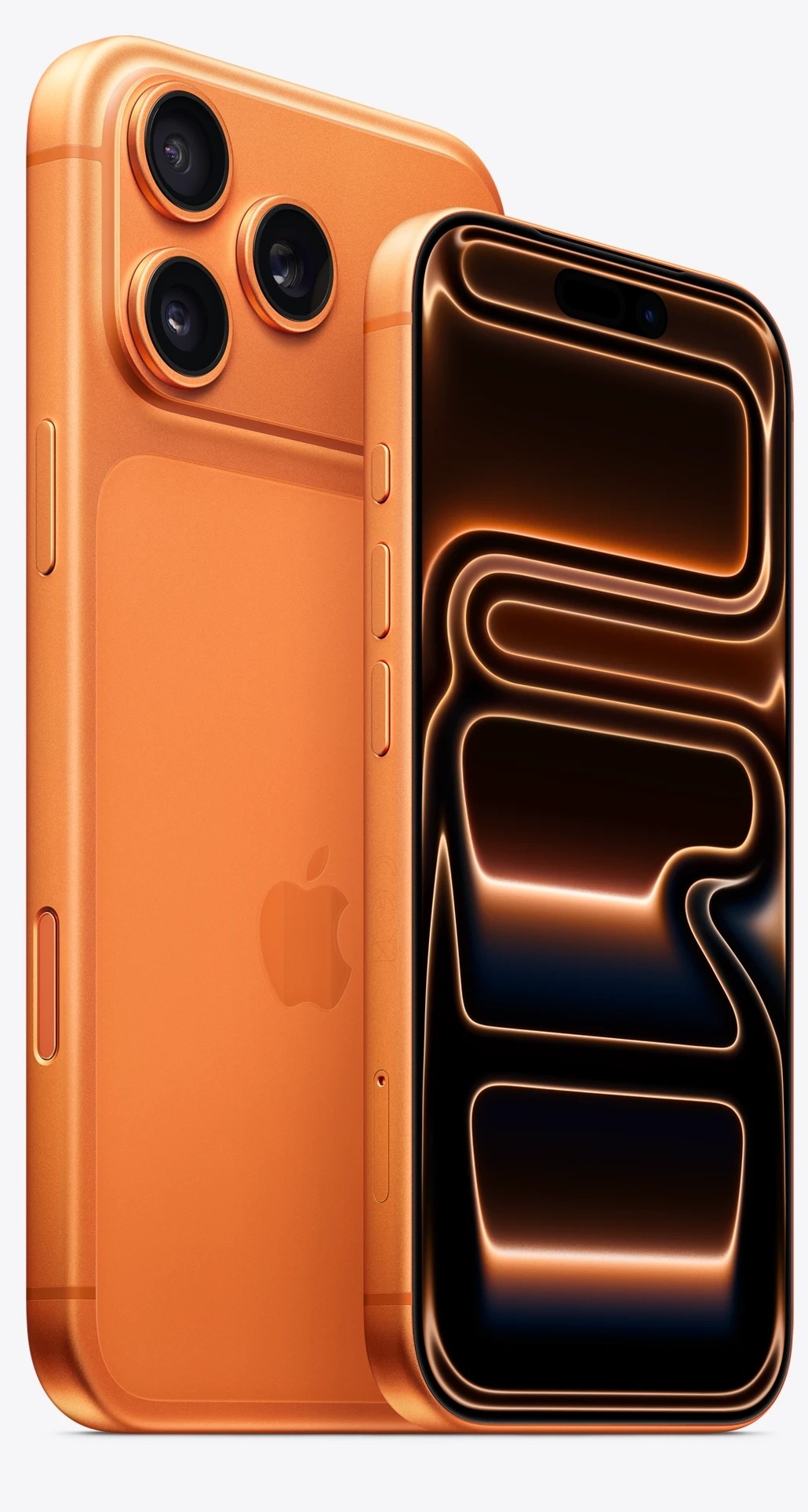

Many iPhone users unlock their phones dozens of times a day, often without thinking about it. During those moments, a simple swipe can sometimes open the Camera app by mistake. With iOS 26.1, Apple has added a new option that lets users stop this from happening. For the first time, iPhone users can turn off the swipe gesture that opens the camera from the Lock Screen.

For years, swiping left on the Lock Screen has opened the Camera app. Apple designed this shortcut to help users capture moments quickly without unlocking the phone. However, the same gesture has also caused frequent accidental launches. Phones placed in pockets or bags often trigger the camera, which can use battery power and store unwanted photos.
Also read:Google Translate now lets users hear live speech translations through headphones
Apple has now addressed this issue by giving users direct control over the gesture. The new setting in iOS 26.1 allows users to disable the Lock Screen camera swipe in just a few steps.
How to Disable the Lock Screen Camera Swipe
Start by opening the Settings app on your iPhone. Scroll down and tap on Camera. Inside the Camera settings menu, look for the option marked “Lock Screen Swipe to Open Camera.” Turn off the toggle next to this option.
Once you complete these steps, swiping left on the Lock Screen will no longer open the Camera app. The change takes effect immediately, and no restart is required.
Also read: Missed a call? WhatsApp now lets you reply with instant voice or video notes
Disabling this gesture does not remove access to the camera entirely. Users can still open the Camera app from the Control Center or by tapping the Camera app icon after unlocking the phone. On newer models, including iPhone 16 and later, users can also use the dedicated Camera Control button.
Also read: Realme Narzo 90 5G, Narzo 90x 5G key specs and price tipped ahead of December 16 launch
If you decide to bring back the swipe gesture later, you can return to Settings, open Camera, and turn the same toggle back on.


