
 E-Paper



This iPhone 17 hidden camera trick will change how you take selfies: Here’s how to use it
Find out this hidden iPhone 17 camera feature that will let you switch between portrait and landscape selfies without rotating your phone. Here’s how to use it.

 Prefer HTon Google


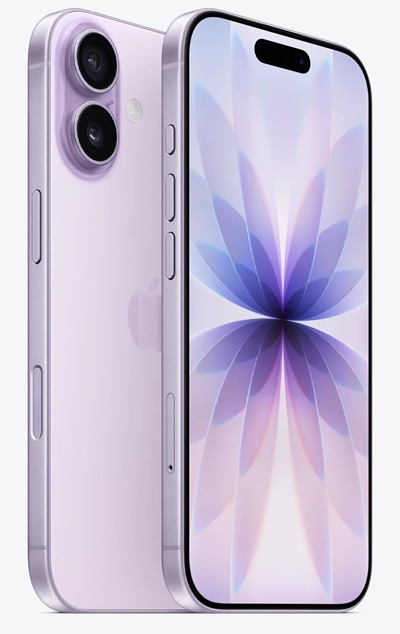

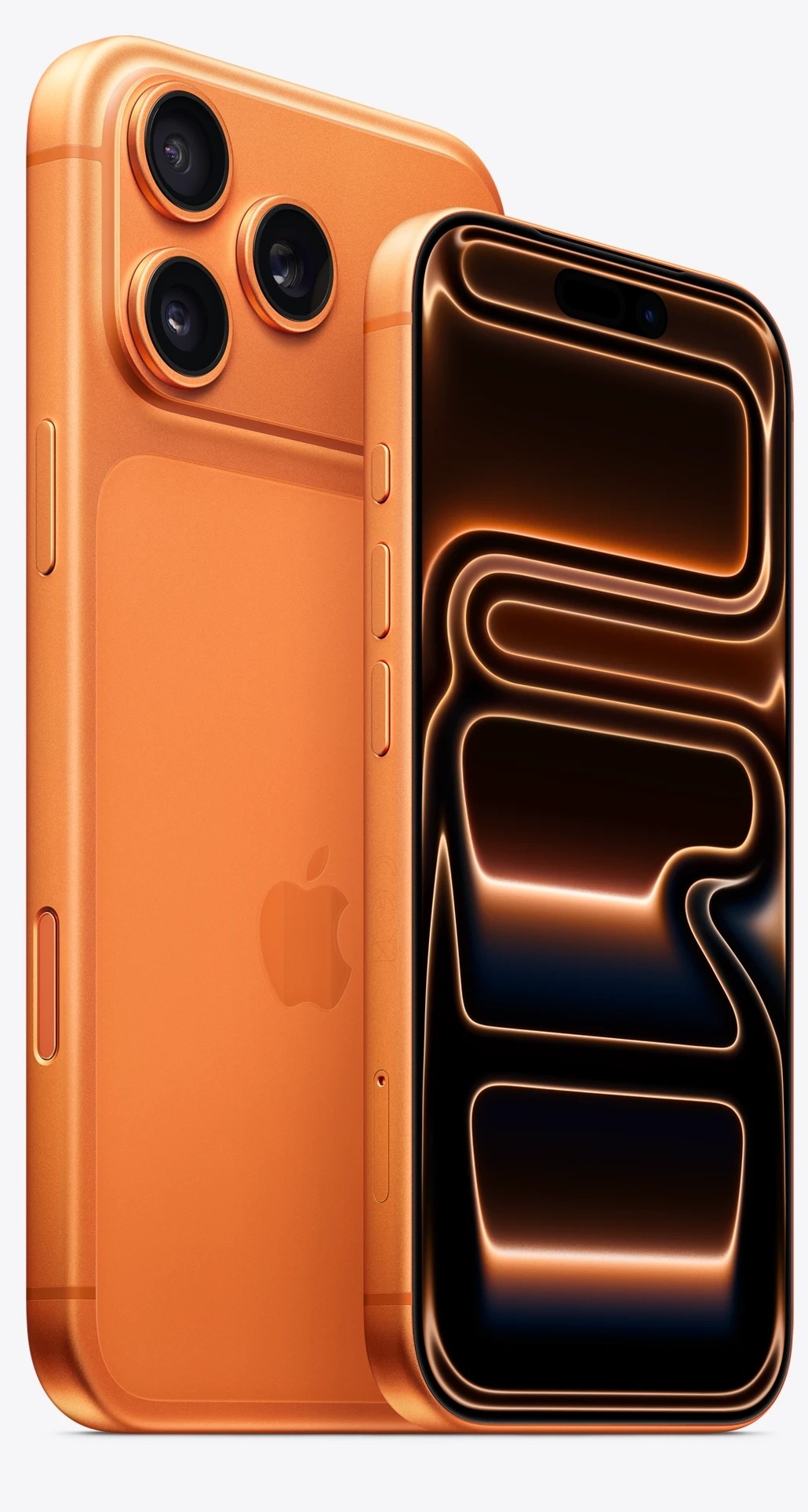
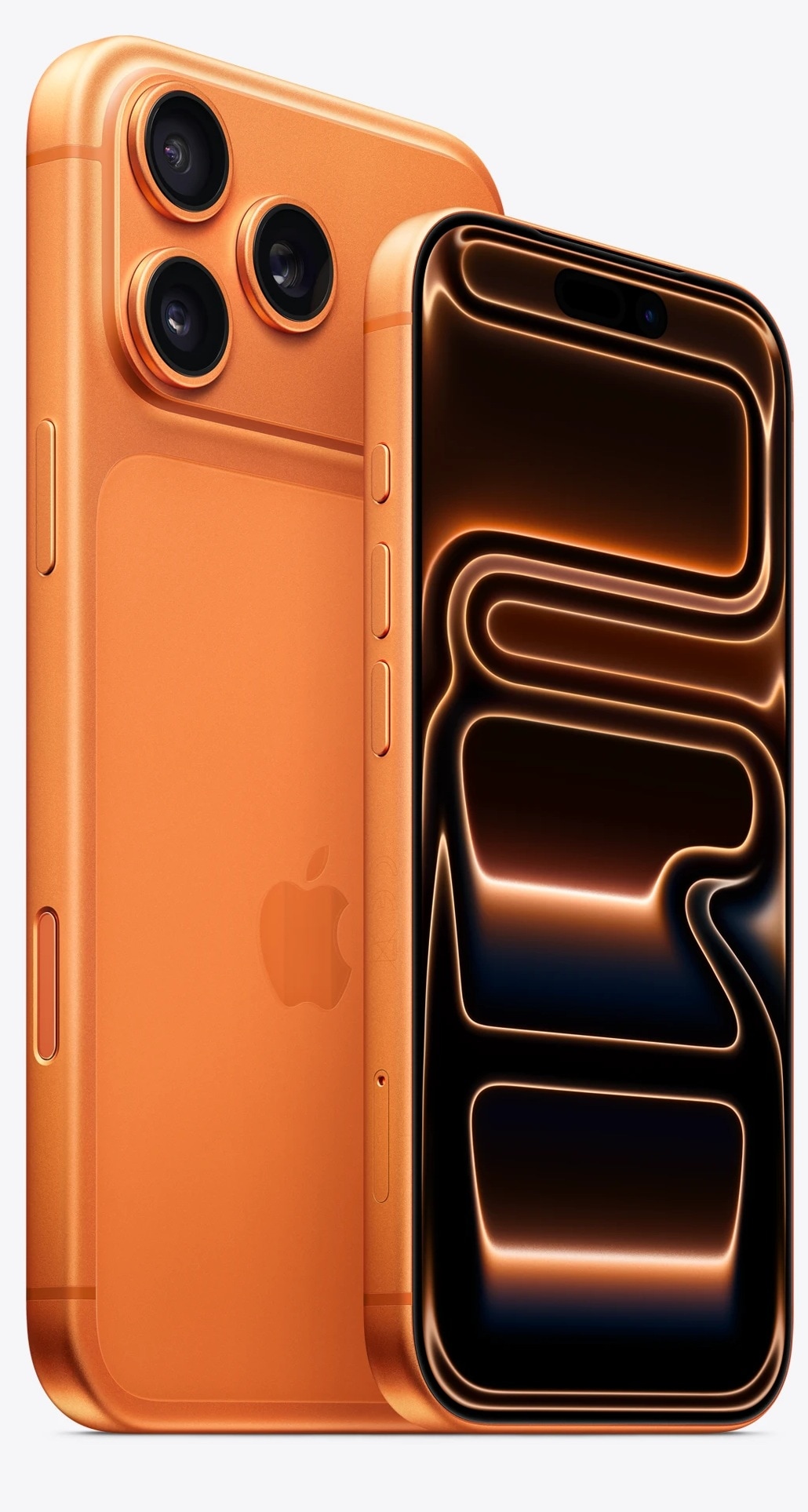
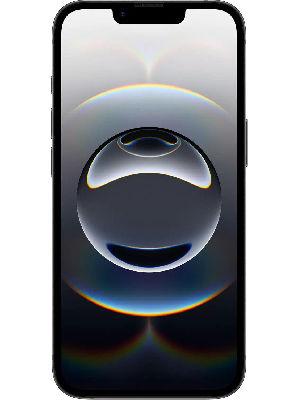


As smartphones evolve, so do the ways we capture ourselves on camera. The iPhone 17 introduces a key change to its front-facing camera that many users might overlook: the new 18MP Center Stage lens. Unlike its predecessor, the 12MP TrueDepth camera, this one not only delivers sharper images but also allows you to switch between portrait and landscape modes without physically rotating your phone. This small adjustment can completely change how you take selfies and video calls, offering more flexibility while keeping the phone in the position you find comfortable.
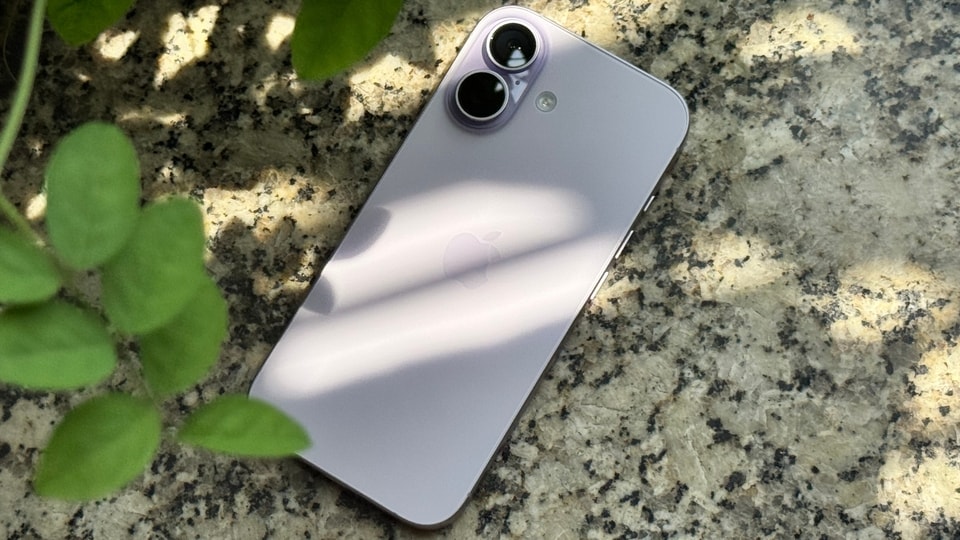

Here’s a step-by-step guide to getting the most out of this overlooked iPhone 17 feature.
Open the Camera App
Start by launching the Camera app. You can do this from the home screen by tapping the icon, using the Camera Control button, or accessing the shortcut directly from the lock screen. All three methods will get you to the same place quickly.
Also read: iPhone 17 review: Subtle yet striking flagship from Apple
Switch to the Front Camera
Once the Camera app is open, tap the Camera switch button in the bottom right corner to switch to the front-facing camera. This will activate the Center Stage lens and prepare it for portrait or landscape shots.
Use the Orientation Switch
Above the shutter button, look for the Orientation switch icon. Tapping this icon lets you toggle between portrait and landscape modes without moving your phone. This is the core feature of Center Stage, allowing you to maintain your preferred grip while capturing the exact framing you want.
Also read: iPhone 17 Pro Max Review (512GB, Cosmic Orange): Apple’s most daring statement phone yet
Adjust Zoom
Next to the Orientation switch, you will see the Zoom button. Tap it once to zoom out and again to zoom back in. This works similarly to the older iPhone Zoom, just without numerical indicators.
Also read: iPhone Air review: Apple’s jewellery-like phone that’s surprisingly practical
Manage Automatic Features
At the top of the Camera app, next to the quick settings, you’ll find a small icon showing a person in a square. Tapping it opens the Center Stage options, where you can toggle auto-zoom and auto-rotate on or off. Keep in mind that enabling these features will disable the manual Orientation and Zoom buttons.
By following these steps, you can fully leverage the iPhone 17’s front camera to capture selfies and videos with more freedom and control than ever before. Center Stage may seem simple, but it will significantly improve how you interact with your camera.


