
 E-Paper



Which Printer Is Suitable For Printing Photos At Home?
The Smart Tank 580 and 585 suit occasional family photos and everyday tasks, while the 720 and 750 add automatic duplexing and, for the 750, a document feeder.

 Prefer HTon Google


For households printing family photographs alongside everyday documents, the HP Smart Tank 580 is a balanced option among the models covered here. It supports borderless printing up to A4 and photo paper up to 300 g/m². The Smart Tank 585 offers similar photo handling, while the 720 and 750 add features for busier document routines.
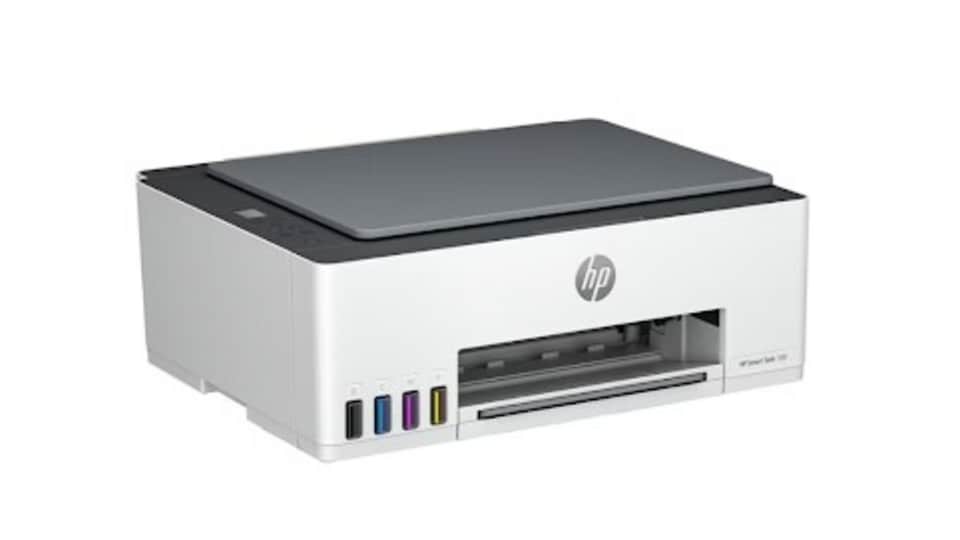
The right choice depends on what you expect from a photograph. Small album prints, framed portraits and occasional school pictures do not necessarily require the same setup. This guide explains the differences, practical settings and costs that matter before you buy.
Start With The Photos You Want To Print
Think about the photographs you actually keep. Perhaps you want a few holiday pictures for an album, a birthday portrait for a frame or several images for a scrapbook. Start there rather than with the printer's highest advertised resolution.
Write down your likely requirements:
- Decide whether you need small album photographs, larger pictures or both.
- Check whether a white border is acceptable for your intended use.
- Estimate how often you will print photographs during a typical month.
- Include any document printing, copying or scanning your household needs.
These answers help establish whether a general household printer will be sufficient. They also prevent you from paying for office features that contribute little to your photo projects.
Understand The Difference Between Home And Specialist Photo Printers
The HP models discussed here are inkjet all-in-ones. They print, scan and copy, making them useful where photographs share the printer with homework, forms and other household tasks.
They use black, cyan, magenta and yellow inks. HP lists pigment black and dye-based colour inks for these models. This arrangement serves mixed printing needs, but it should not be treated as equivalent to every specialist photographic ink system.
Some dedicated photo printers use additional inks or different printing technologies. Their benefits vary by model, so assess actual sample photographs, supported sizes and running costs rather than relying on the word “photo”.
A household all-in-one makes sense if convenience and versatility matter. For exhibition prints, demanding portrait work or photographs as your main output, examine specialist options before committing.
Compare The Photo Features Of These HP Printers
Borderless capability and compatible paper matter more directly to photographs than a document feeder or faster text printing. The following table highlights those differences.
| Model | Borderless Capability | Supported Photo Paper Weight | Practical Fit |
| HP Smart Tank 580 | It supports borderless output up to A4. | It accepts photo paper up to 300 g/m². | It suits photos alongside household documents. |
| HP Smart Tank 585 | It supports borderless output up to A4. | It accepts photo paper up to 300 g/m². | It offers similar photo handling to the 580. |
| HP Smart Tank 720 | It supports borderless output up to A4. | It accepts photo paper up to 250 g/m². | It suits homes with frequent document printing. |
| HP Smart Tank 750 | It supports borderless output up to A4. | It accepts photo paper up to 250 g/m². | It adds convenience for scanning document batches. |
| HP DeskJet Ink Advantage 2986 | It does not support borderless printing. | It accepts HP 10 × 15 cm photo paper up to 300 g/m². | It suits occasional photographs with borders. |
IMPORTANT: These are media specifications, rather than measured rankings of photographic quality. Paper weight alone does not tell you which printer produces more accurate skin tones or smoother colour transitions.
HP Smart Tank 580: A Balanced Option For Family Photos
The HP Smart Tank 580 combines refillable ink tanks with wireless printing and support for common photo formats. Its borderless capability makes it relevant for album photographs and pictures intended for display.
It also handles scanning and copying, so a family does not need a separate device for occasional paperwork. If a child needs a printed photograph for a project, the same printer can handle the accompanying text pages.
The 580 offers manual two-sided document printing. You turn and reload the sheets yourself when the job requires printing on both sides.
When it fits: Your household wants photographs and documents from one printer, without needing automatic document handling.
When it may not fit: Your priority is specialist photographic output, or frequent document jobs make manual page turning inconvenient.
HP Smart Tank 585: A Similar Alternative For Photo Projects
The HP Smart Tank 585 shares the 580's listed A4 borderless capability and maximum photo-paper weight. It therefore deserves a place on the same shortlist for family albums, scrapbook pictures and occasional framed prints.
Both models offer wireless printing and manual duplexing. Their closely matched photo-media specifications do not establish that the 585 produces better photographs.
The purchase decision can depend on the current offer, stock availability and supplies included with the particular India package. Check those details on the product listing rather than assuming that similar model numbers mean identical bundles.
When it fits: You want the same general photo features as the 580 and find a suitable purchase package.
When it may not fit: You expect the model number alone to deliver an upgrade in photographic quality.
HP Smart Tank 720: Useful When Documents Share The Workload
The HP Smart Tank 720 adds automatic two-sided document printing. That is useful for longer notes, study material and reports that would otherwise require manual sheet handling.
It also supports borderless photographs up to A4, with photo paper up to 250 g/m². HP lists ISO document speeds of up to 15 pages per minute in black and nine in colour. Those figures describe document printing, rather than the time needed for a high-quality photograph.
For a household printing substantial paperwork between photo projects, the additional document features can justify this model.
When it fits: Regular documents and photographs both form part of your home printing routine.
When it may not fit: You mostly need album prints, so automatic duplexing would receive little use.
HP Smart Tank 750: Helpful For A Home Office With Photos
The HP Smart Tank 750 includes a 35-sheet automatic document feeder, or ADF. It feeds a stack of suitable document pages into the scanner, reducing the need to position every page individually.
This feature is useful for forms and other paperwork. It does not add inks or improve a photograph simply because the printer costs more.
Like the 720, the 750 supports automatic duplex document printing, borderless output up to A4 and photo paper up to 250 g/m².
When it fits: Your household also scans batches of documents for work or administration.
When it may not fit: Photographs are your main task and multi-page document scanning is rare. In that situation, the feeder gives you little practical benefit.
HP DeskJet Ink Advantage 2986: For Occasional Photos With Borders
The HP DeskJet Ink Advantage 2986 uses a black cartridge and a tri-colour cartridge. It supports wireless printing and compatible photo paper, including HP 10 × 15 cm sheets up to 300 g/m².
However, HP lists borderless printing as unavailable. Your picture therefore prints with margins rather than filling the sheet from edge to edge.
This may be acceptable for a school activity or a scrapbook layout where photographs are cut and mounted. It is less convenient if you want finished prints that fill standard album pockets without trimming.
When it fits: You print occasionally and accept visible borders.
When it may not fit: Regular borderless photo printing is a central requirement.
Choose Photo Paper That Matches The Printer And Picture
Paper changes how a photograph looks and feels. Ordinary office paper can work for a layout preview, but compatible coated photo paper is more appropriate for a finished picture.
Decide Between Glossy And Matte Finishes
Glossy photo paper gives pictures a shiny surface and can make colours appear vivid. It suits many holiday photographs and family album prints.
Matte photo paper has a less reflective surface. It can be helpful where glare would distract from a displayed picture. Neither finish is universally better; the subject and display location influence the choice.
Buy a small pack first. Print a familiar photograph on the finish you prefer before ordering paper for an entire album.
Keep unused photo paper in its packaging, away from damp areas. Handle printed pictures by the edges and follow the paper manufacturer's drying instructions before stacking them, mounting them or placing them in albums.
Check Weight And Compatibility
The term gsm means grams per square metre. It describes paper weight, rather than the detail your printer can reproduce.
Use inkjet-compatible photo paper within your model's supported size and weight limits. A heavier sheet is not automatically suitable just because it feels more substantial.
HP specifically recommends photo paper weighing 250 gsm or less for the Smart Tank 720 and 750 when addressing margin shifts with 300 gsm Premium Plus Glossy sheets.
Prepare The Image Before You Press Print
A photograph can look clear on a small phone display but lose detail when enlarged. File preparation helps you avoid wasting good paper on an image that cannot support the intended size.
Use The Original Photograph
Print from the original camera or phone file where possible. Screenshots and compressed copies may contain less detail than the original.
For context, a 4 × 6 inch photograph at 300 pixels per inch requires 1,200 × 1,800 pixels. Pixels describe the image file; printer dots per inch describe how the printer places ink. These measurements are related, but they are not interchangeable.
Check The Crop
A square picture cannot fill a rectangular sheet without leaving space or losing part of the image. Preview the crop before printing, especially where faces or important objects sit near an edge.
Borderless printing can also trim a small amount around the picture. Leave room around the subject instead of placing important details against the boundary.
Make Modest Adjustments
If needed, straighten the image and correct an obvious brightness problem. Avoid repeatedly increasing colour intensity just because the phone screen looks brighter than paper. A test print gives you a more useful reference.
Follow A Simple Photo Printing Routine
Once you have prepared the file and chosen suitable paper, keep the printing process consistent. The labels available in the software can vary by device and operating system.
- Load the photo paper according to the printer's instructions, with the printable surface facing the correct direction.
- Open the photograph through compatible printing software on your phone or computer.
- Choose the connected printer and match the paper size to the loaded sheet.
- Set the paper type to the appropriate photo-paper option rather than leaving it on plain paper.
- Choose a photo or high-quality setting where available, then check orientation and borderless options.
- Print one copy and inspect it before sending the remaining photographs.
Do not assume that automatic two-sided document printing also supports two-sided photographs. For the Smart Tank 720 and 750, HP excludes borderless photos from the listed duplex media support.
Work Out The Cost Of Finished Photos
The purchase price is only the first expense. A home photo-printing budget should also cover compatible paper, replacement ink and unsuccessful prints.
Refillable tanks and cartridges create different purchasing routines. Tank models use bottles for replenishment, while the DeskJet 2986 requires replacement cartridges. Compare the cost of the correct supplies for the model you intend to buy.
HP explains that actual yield varies with printed content, printing frequency, setup and other factors.
For a useful household estimate, record your paper spending and ink purchases over several photo projects. Divide that total by the number of acceptable finished photographs. Keep the printer purchase price separate so you can see both ongoing expenses and the initial investment.
If you only need one large batch each year, compare the total with a photo lab quotation. Home printing may still appeal because you control the timing, edits and number of copies.
Deal With Problems Before Reprinting A Whole Batch
A disappointing photograph does not always mean you bought the wrong printer. Identify the visible problem before changing several settings together.
- If the image looks soft, check the original file and reduce the print size if necessary.
- If colours look unusual, confirm the paper type and colour settings before editing the photograph again.
- If lines appear across the picture, follow the model's print-quality diagnostic and cleaning instructions.
- If the crop removes part of a face, adjust the layout preview before producing another copy.
Change one thing at a time and keep the test print for comparison. This makes it easier to understand which adjustment helped, rather than guessing after several changes.
Final Verdict
Among these HP models, the Smart Tank 580 is a balanced recommendation for households that want borderless photographs alongside everyday printing. The 585 is a closely matched alternative, while the 720 and 750 become more useful as document handling needs increase.
The DeskJet 2986 suits occasional pictures where borders are acceptable. For photography as your main purpose, compare specialist printers and sample output too. Your final choice should reflect the photographs you want to keep, the paper you plan to use and the other jobs the printer must handle.
FAQs About Printing Photos At Home
Does A Higher DPI Always Mean Better Photos?
No. Image detail, paper, ink and print settings also affect the result. A large resolution figure cannot restore detail missing from the original photograph.
Can I Print Photos Directly From My Phone?
Yes, these models support mobile printing. Follow HP's setup instructions for your device, then check the paper size and photo settings before printing.
Should I Print Every Photo At A4 Size?
No. Match the size to the image detail and intended use. Small album prints often suit everyday photographs, while larger prints need closer attention to file quality.
Note to readers: This article is part of HT's paid consumer connect initiative and is independently created by the brand. HT assumes no editorial responsibility for the content, including its accuracy, completeness, or any errors or omissions. Readers are advised to verify all information independently.


