
 E-Paper



How to generate and edit multiple images in ChatGPT without writing long prompts at once
Here’s how to create images in ChatGPT without guesswork by using the new Images section, built-in presets, and tools that simplify every step.

 Prefer HTon Google


OpenAI has changed how image generation works inside ChatGPT, and the update focuses on ease of use rather than only model changes. With the rollout of GPT Image 1.5, the company has added a separate Images section that reshapes how users create, edit, and test visuals.
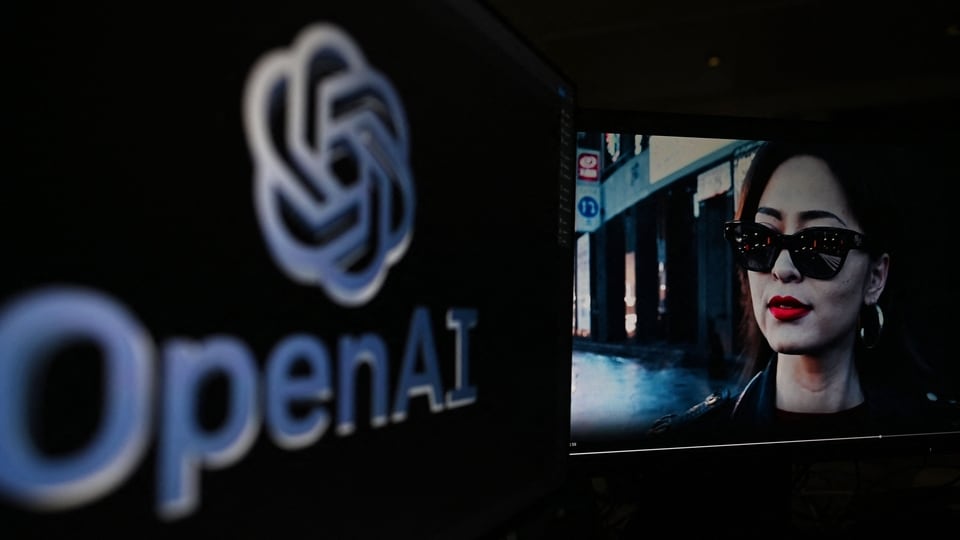

Earlier, image prompts were located within regular chats. Now, ChatGPT places them in a dedicated space built for visual tasks. This change streamlines the process, giving users, especially those who want results without writing long prompts, a clearer starting point.
Also read: Google launches CC AI agent to manage your emails: Here’s how it works
What GPT Image 1.5 Changes
GPT Image 1.5 aims to fix common user complaints. When users upload an image and request edits, the system now applies changes more accurately. It keeps lighting, layout, and faces consistent unless the prompt asks otherwise. Text inside images also appears clearer, including small or crowded words.
Image generation now takes less time. This becomes useful when users test several ideas one after another.
Also read: OnePlus 15R, OnePlus 15R Ace Edition launching in India today: Price, features and how to livestream
Images Section Offers a New Entry Point
ChatGPT now includes an Images tab in the sidebar on mobile and web. When users open the app, they are shown a visual layout instead of an empty chat screen. At the top, a prompt box invites users to describe an image. Below it, preset styles appear with preview samples.
These presets include options such as Bollywood poster, Festival, Navratri, Mithila, Jaipur textile, and Sari landscape. Further down, the platform suggests quick ideas like creating cartoons, designing cards, or generating album covers. This setup helps users begin without guessing how to phrase prompts.
How to Use ChatGPT Images on Mobile
- Open the ChatGPT app
- Tap the menu icon in the top-left corner
- Select Images below “New chat”
- Upload an image or type a description
- Choose a preset or add your own prompt and generate
Also read: BGMI official redeem codes: Get Suave Master set and new in-game exclusive rewards for free
How to Use ChatGPT Images on the Web
- Open ChatGPT in a browser
- Click the sidebar icon
- Select Images under “Search chats”
- Upload an image or enter a description
- Pick a style or write a prompt and generate
Users can send multiple image requests at the same time. While one image is being processed, they can start another without waiting. The preset styles work like built-in prompt guides. They remove guesswork and help users test ideas faster, which makes image generation more accessible for regular use.


