
 E-Paper



How to switch to a new iPhone without losing any data in 2025
Are you planning to buy a new iPhone but don't want to lose any of your data? Follow these steps to avoid any loss in 2025.

 Prefer HTon Google


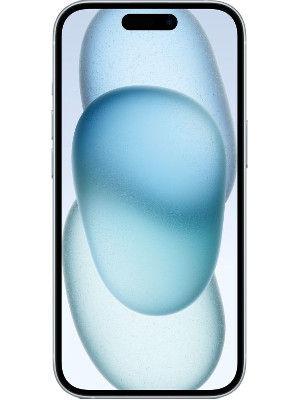


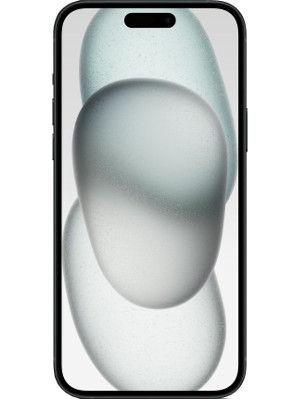
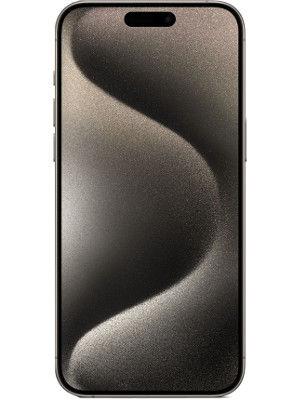
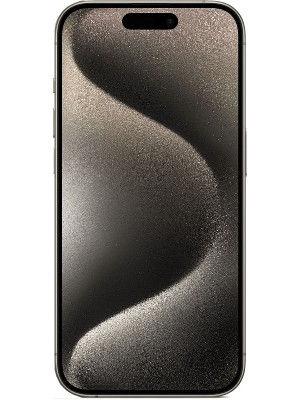


Upgrading to a new iPhone is exciting, until the thought of losing your photos, chats, and passwords ruins it. Thankfully, Apple has made migration nearly foolproof in 2025. Whether you prefer wireless setup, cloud restore, or a wired transfer, you can move everything seamlessly—down to your wallpaper and eSIM.
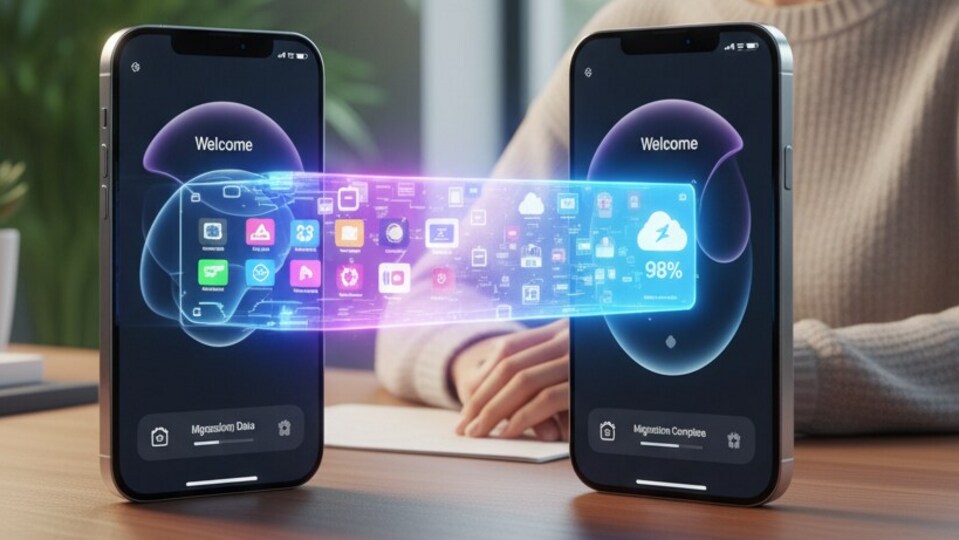

Step 1: Prep before transfer
Before you begin, update your old iPhone to the latest iOS version. A mismatch can interrupt the transfer. Check your iCloud backup status under Settings > Apple ID > iCloud > iCloud Backup and make sure it’s recent.
Plug both devices in, connect to stable Wi-Fi, and sign out of services like Find My, iMessage, or FaceTime if you’re planning to sell or give away the old device.
Step 2: Quick start – The easiest route
Apple’s Quick Start feature remains the fastest way to set up your new iPhone. Turn on Bluetooth and place both phones side by side. A prompt appears on the new iPhone, scan the on-screen pattern, and the transfer begins.
You can choose wireless or go wired using a USB-C to Lightning or USB-C cable for faster migration. Everything like apps, messages, settings, Wallet cards, and photos moves over. Keep the phones close and plugged in until setup completes.
Step 3: iCloudbackup and restore
If you don’t have your old device handy, iCloud restore works just as well. On your old iPhone, create a fresh backup, then on the new one, choose Restore from iCloud Backup during setup.
This restores photos, app data, contacts, and even passwords directly from the cloud. Just make sure your Wi-Fi connection doesn’t drop mid-way.
Step 4: Transfer using Mac or PC
For slower networks or heavy photo libraries, go old-school with a Mac or PC. Use Finder (Mac) or iTunes (Windows) to make an encrypted local backup, then restore it to your new iPhone. It’s the best way to preserve health data and saved passwords.
Step 5: Handle your eSIM or SIM card
If your old phone uses an eSIM, follow the prompts to transfer your number or scan your carrier’s QR code. Dual-SIM users can insert the physical card or activate the second line in Settings > Cellular.
If the transfer fails, contact your carrier, number porting can take time.
Step 6: Final checks
Before erasing your old iPhone, verify that calls, messages, Wallet, and Authenticator apps work properly on the new one. Log into all major accounts and back up one final time.
Once everything’s running smoothly, erase your old device via Settings > General > Transfer or Reset iPhone.


