
 E-Paper



iPhone users, here’s how to set ChatGPT as your default search engine in Safari
After Google Chrome on desktop, ChatGPT now even works as the default search option on Safari for iPhone. Here's how it works.

 Prefer HTon Google


You may be interested in








ChatGPT is undoubtedly the most popular AI tool in existence today. As things stand, many people have started using it for everyday queries, so much so that it’s even replacing Google for some. The primary limitation, however, is that you need to have a separate app installed on your phone in order to search for something, or open ChatGPT separately in your browser.
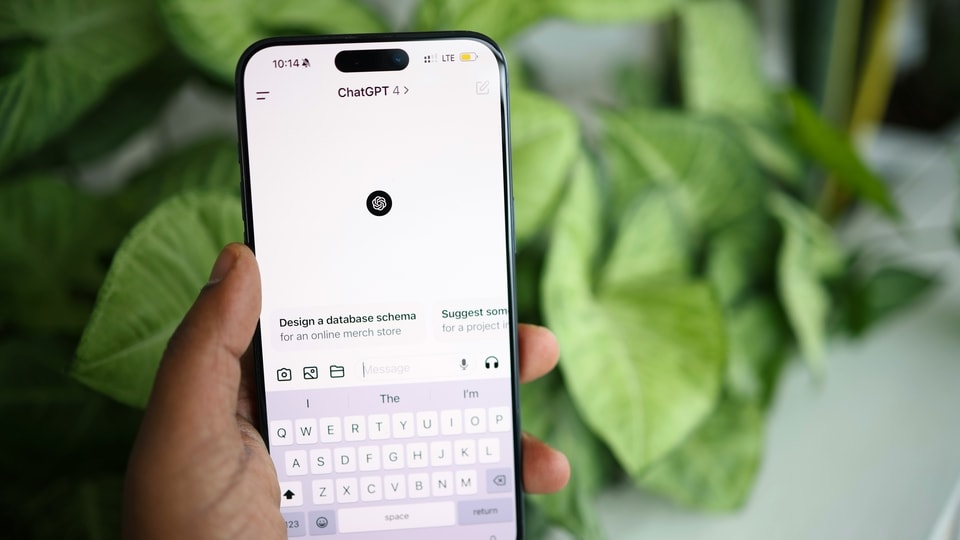

Ideally, one would simply type a search query directly into Safari/Chrome and expect to get answers like a normal search engine. While ChatGPT isn’t available in the literal sense as a search engine, there are definitely ways to work around this and actually use ChatGPT as the default search option in Safari.
On desktop, this was previously possible with Google Chrome when ChatGPT search was launched last year. But now, you can do the same on the Safari mobile app as well, and this means, iPhone and iPad users can now use ChatGPT Search directly.
Also Read: Converting PDF online? Beware, hackers are now hiding viruses - Here’s how to check
Here are the steps to set it up on an iPhone:
Before you begin, make sure you download the ChatGPT app from the Apple App Store on your iPhone and set it up, and then follow these steps.
- Open the Settings app on your iPhone.
- Scroll down, go to Apps, and look for Safari.
- In Safari settings, scroll down and tap on Extensions.
- You will see the option to allow ChatGPT Search. Turn it on.
- You can also enable ChatGPT Search for Private Browsing.
- You will also see a permission setting for google.com, set it to Allow.
Also Read: New AI startup aims to replace human labour jobs – Social media in panic mode
Next, open the Safari app on iOS
- Tap the menu icon (either at the top left or bottom left, depending on where your address bar is).
- Tap Manage Extensions.
- From the list, enable ChatGPT Search.
Now, whenever you search for something in the address bar, it will be done through ChatGPT. Since ChatGPT can now browse the web for you, it will provide answers based on the latest information it finds online.
Mobile finder: Galaxy S25 Ultra LATEST price, specs and all details


